
Blog Listing
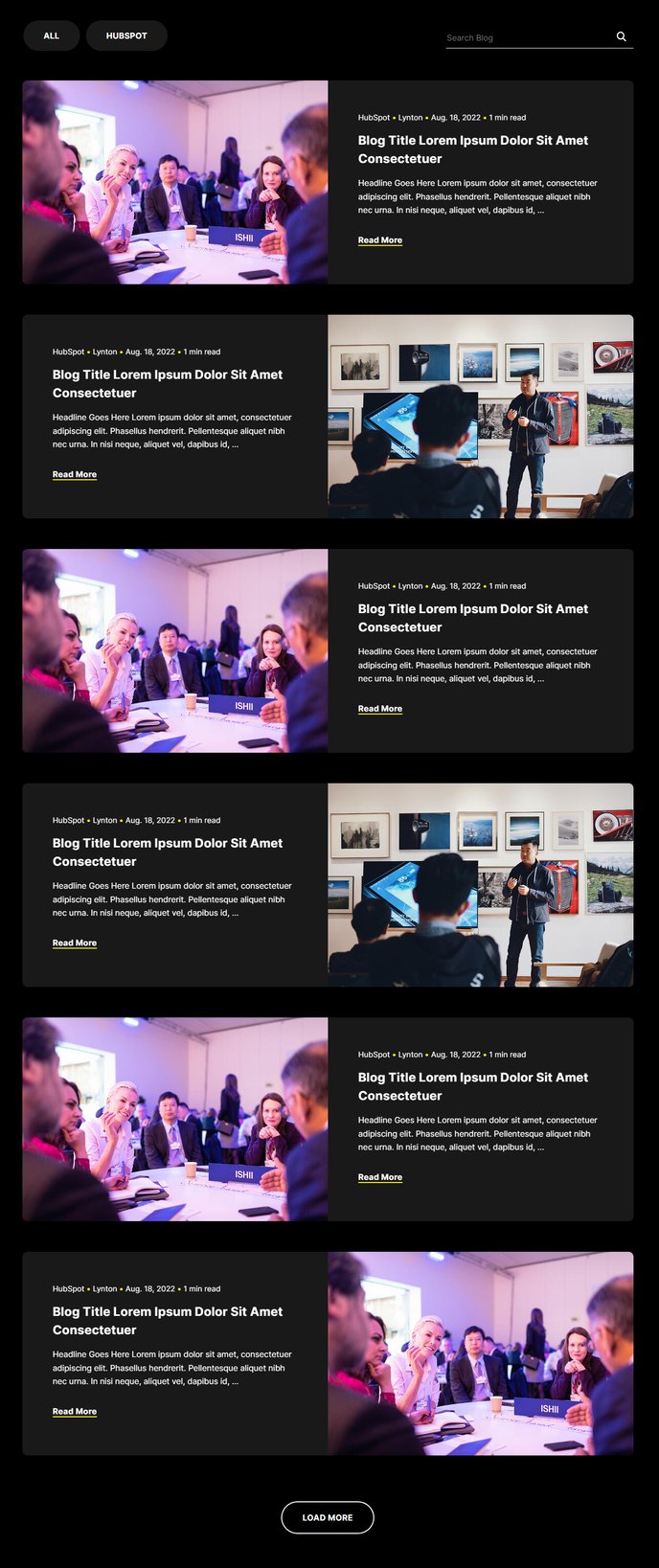
Filterable and searchable listing of blog posts.
Note: In Settings > Website > Blog > Templates set the Number of posts per listing page to 100000000 to ensure the infinite loading works. This module is only available for use on Blog Listing templates.
View a live demo of this module.
Content
- Choose the number of posts to show per page
- Edit the tag list to be a dropdown, set a label, use a picklist of tags, and choose to show the tags in the post thumbnails.
- Show/hide tags, authors, and read times in post thumbnails
- Choose the maximum number of tags to show in post thumbnails
- Edit strings used in the listing (Load More, View All, Search Label, etc)
Styles
- Set to Light Mode
- Change the Load More button style
- Change the posts’ load in animation, background color, border, and Light Mode.
- Change the posts’ image’s hover animation.
- Change the post thumbnail style [+ only]
- Use a masonry-style layout for post thumbnails [+ only]
- Add a glow on hover for posts [+ only]
How to Use This Module
The Blog Listing module serves as your blog’s main content hub, designed to showcase your posts in an engaging, user-friendly format that encourages visitors to explore your content. Unlike HubSpot’s default blog listing page, this module gives you complete control over the visual presentation and filtering capabilities of your blog archive.
When adding this module through the page editor’s drag-and-drop interface, you’ll find it only appears in the module selection when working with Blog Listing page templates. This restriction ensures the module functions properly with HubSpot’s blog system and maintains the theme’s conversion-focused design principles.
The infinite loading feature requires specific configuration in your HubSpot settings to work seamlessly. By setting an extremely high number of posts per listing page, you override HubSpot’s default pagination and allow the module’s JavaScript to handle content loading instead. This creates a smoother user experience that keeps visitors engaged with your content longer.
Best practices for this module include:
-
Tag strategy: If you use the picklist option for tags, curate your selection to include only your most important content categories. Too many filter options can overwhelm visitors.
-
Post thumbnails: Enable the masonry layout (available in Brightlane+) when your blog posts use featured images with varying aspect ratios. This prevents awkward spacing and creates a more polished appearance.
-
Performance optimization: While you can display many posts per page, consider your site’s loading speed. Monitor your blog’s performance and adjust the posts per page if you notice slower load times affecting user experience.
The module works particularly well for content-heavy sites where visitors expect to browse and discover multiple articles during a single session.