
Embedded Map [+ only]
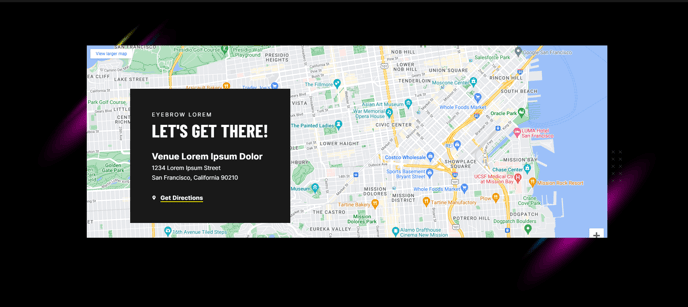
An embedded map with optional overlay text.
View a live demo of this module.
Content
- Add the map embed code. In Google Maps:
- Navigate to the map you wish to embed
- Select “Share or embed map” in the sidebar
- Go to the “Embed a map” tab and click “Copy HTML”
- Paste into the Embed field in the module
- Include heading text as an overlay on the map
Styles
- Set Light Mode
- Adjust map border radius
- Change heading alignment
- Change heading background color
- Change heading spacing
About This Module
The Embedded Map module is specifically designed for professional services, events, and B2B companies who need to prominently display location information on their HubSpot website. This drag-and-drop module combines an interactive map with customizable overlay text, making it perfect for contact pages, event locations, office directories, or service area displays.
You can add this module to any page or landing page in your HubSpot page editor by dragging it from the module library into your desired location. The module works particularly well on contact pages, about pages, event detail pages, and location-specific landing pages where geographic context enhances user experience.
When setting up your embedded map, consider that Google Maps embed codes include specific zoom levels and map types (satellite, terrain, or roadmap) that you set before copying the HTML. Test different zoom levels to ensure your map displays the right amount of geographic context for your audience. For professional services, a closer zoom showing nearby landmarks helps clients find your office, while event venues might benefit from a wider view showing parking and transportation options.
The overlay heading feature is particularly useful for adding context without cluttering the map itself. Use it to display your business name, event title, or location-specific messaging. The Brightlane theme’s styling options let you adjust the overlay’s background color to maintain readability against varying map backgrounds.
For optimal performance, avoid embedding multiple maps on a single page, as this can slow loading times. If you need to show multiple locations, consider using a single map with multiple pins or creating separate pages for each location. The module’s responsive design ensures your embedded map displays correctly across all device types in HubSpot’s mobile-optimized environment.