
Tabs
Full-width section with narrow container for tabbed content.
View a live demo of this section.
Modules
Usage Guide
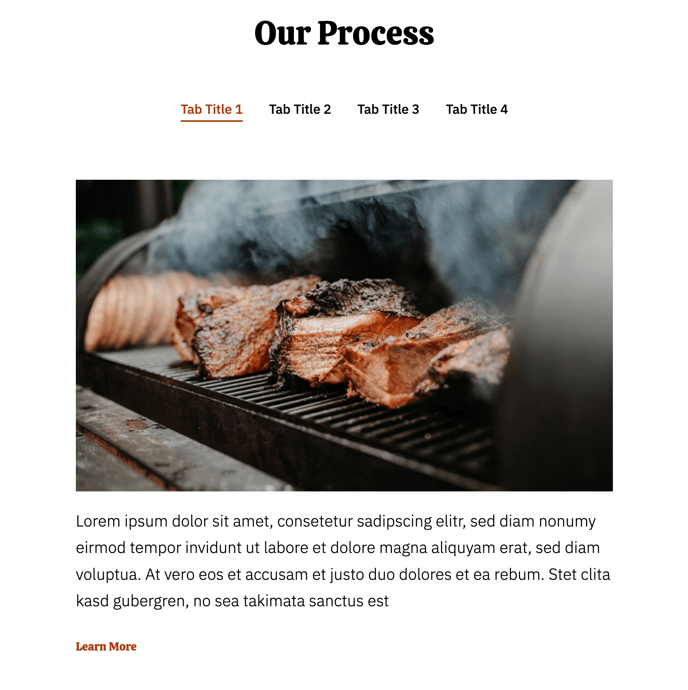
The Tabs section provides an elegant solution for organizing large amounts of content without overwhelming your visitors. This full-width section uses a narrow container layout that keeps your tabbed content readable and focused, making it particularly effective for restaurant menus, service offerings, or FAQ sections where you need to present multiple categories of information.
When you add this section to any page in the HubSpot page editor, you’ll get a professionally designed layout that automatically adapts to your theme’s color scheme and typography settings. The narrow container ensures optimal readability across all device sizes while the full-width background creates visual impact.
Best practices for the Tabs section:
Use descriptive tab labels that clearly indicate what content visitors will find in each tab. For restaurants, consider organizing tabs by meal types (Breakfast, Lunch, Dinner) or food categories (Appetizers, Entrees, Desserts). Local businesses can organize services, pricing tiers, or location-specific information.
This section works exceptionally well on service pages, about pages, and dedicated menu or product showcase pages. The tabbed layout encourages visitors to explore multiple content areas without requiring page navigation, which can improve engagement metrics and time on site.
You can customize the appearance through the theme settings panel, adjusting colors, spacing, and typography to match your brand. The section integrates seamlessly with other Bussin theme elements, so you can combine it with hero sections, testimonials, or call-to-action blocks to create comprehensive landing pages.
Consider placing this section in the middle of longer pages where you need to break up text-heavy content, or use it as a primary content area when you have several related topics that benefit from organized presentation.