
Related Resources
Dynamically generated or manually added resources related to the current page's content.
View a live demo of this module.
Content
- Include a heading
- Show/Hide thumbnail, tag, date, and/or summary
- Choose how many posts to show
- Add resources manually or dynamically
- If adding resources dynamically — by default, it will pull resources from the portal’s default blog, but you can choose any blog in your portal to pull from
- If adding resources dynamically, choose to show most recent posts, post with certain tags, and/or posts within a certain date range
- If adding resources dynamically, choose where you want the summary to be pulled from and the max character length of the summary
Styles
- Set Dark Mode
- Change heading alignment
- Edit background, border, and box-shadow of resource items
- Choose aspect ratio and hover animation for images
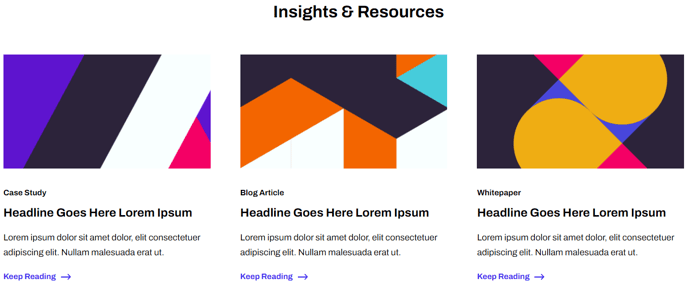
How to Use This Module
The Related Resources module is designed to keep visitors engaged by showcasing relevant content at strategic points throughout your website. This module works particularly well on blog posts, landing pages, and resource pages where you want to guide users to additional valuable content within your HubSpot portal.
When adding this module through the page editor’s drag-and-drop interface, you’ll find it most effective when placed at the bottom of content-heavy pages or in sidebar areas. The dynamic functionality automatically pulls from your HubSpot blog posts, making it ideal for SaaS and technology companies that regularly publish thought leadership content, case studies, or product updates.
Best practices for implementation: Position the module after your main content but before footer elements to maximize click-through rates. If you’re manually curating resources, consider selecting content that represents different stages of your buyer’s journey to appeal to visitors with varying levels of interest in your solutions.
The tag-based filtering feature is particularly powerful for technology companies with diverse product lines. You can configure the module to show only resources tagged with specific topics relevant to the current page’s content, ensuring contextual relevance. For example, on a cybersecurity landing page, you might filter for posts tagged “security” or “compliance.”
When customizing the visual appearance, the aspect ratio settings help maintain consistency with your overall theme design. The Framework theme’s clean aesthetic works best when you limit the number of displayed resources to 3-4 items to avoid overwhelming visitors. The hover animations add subtle interactivity that enhances user experience without being distracting.
Remember to preview your changes in both light and dark mode if your site utilizes the theme’s dark mode functionality, ensuring optimal readability across all viewing preferences.