
Resource Cards Slider [+ only]
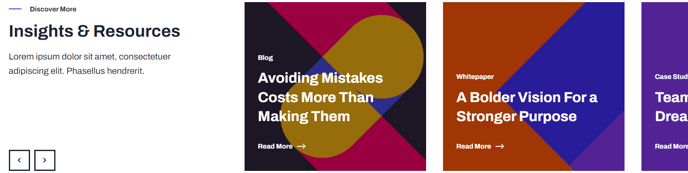
A slider showing multiple resources at a time.
Note: This module is only available in Framework+, a paid version of Framework.
View a live demo of this module.
Content
- Include a heading
- Change heading placement (top or left)
- Add any number of resources with image, text, and call to action
- Set number of slides to show at a time for desktop, laptop, tablet, and mobile
- Edit slider screen reader text (next, previous, etc)
Styles
- Set Dark Mode for heading, cards, and slider arrows separately
- Change heading text alignment
- Change card text alignment
- Set slider type (slide, loop, rewind)
- Change space between cards
- Set a minimum height on the cards
Overview
The Resource Cards Slider module is designed to showcase multiple resources, case studies, whitepapers, or blog posts in an engaging, space-efficient carousel format. This premium Framework+ module excels at highlighting your company’s thought leadership content while maintaining clean, professional aesthetics that align with SaaS and technology brand standards.
You’ll find this module particularly effective on landing pages, resource hub pages, and homepage sections where you want to promote multiple pieces of content without overwhelming visitors. Unlike static resource grids, the slider format allows you to display more resources in less vertical space while giving users interactive control over browsing.
When adding this module through the HubSpot page editor, you can drag it into any flexible column or section. The responsive slide controls you configure will automatically adjust the viewing experience across devices – for example, showing four cards on desktop while displaying just one on mobile for optimal readability.
Pro tip: Link your resource cards directly to HubSpot landing pages with forms to capture leads, or connect them to blog posts to drive content engagement. The call-to-action buttons integrate seamlessly with HubSpot’s tracking capabilities, allowing you to measure which resources generate the most interest.
Consider using consistent imagery dimensions across all cards to maintain visual harmony. The minimum height setting ensures uniform card appearance even when resource descriptions vary in length. For accessibility compliance, take advantage of the screen reader text options to provide clear navigation instructions for users relying on assistive technologies.
This module works exceptionally well when paired with Framework’s other content modules to create comprehensive resource sections that guide visitors through your content funnel.