
Resource Listing
Filterable and searchable listing of resources.
View a live demo of this module.
Content
- Add filters and choose to display them as dropdowns or not (dropdowns are recommended if adding more than one filter if your filter has more than a few categories)
- Choose how many items to show per page
- Edit strings used throughout the module (Search Label, View All, Load More, etc.)
Styles
- Set module to overlap section above or below it (only visible if this module’s section and the section it’s overlapping have differing backgrounds)
- Set Dark Mode on filters and resource items separately
- Choose load in animation for resource items
- Edit background and border of resource items
- Choose aspect ratio and hover animation of images as well as whether to have the image fill the container or be contained within it
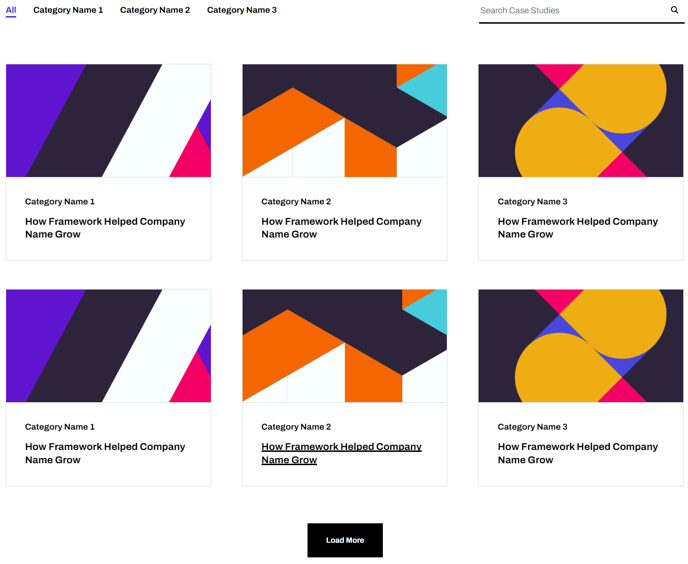
About This Module
The Resource Listing module is designed to showcase your company’s content library in an organized, user-friendly format that encourages exploration and engagement. This drag-and-drop module works particularly well on dedicated resource pages, knowledge base sections, or as a featured content area on your homepage.
When you add this module to any page in the HubSpot page editor, it automatically pulls content from your HubSpot blog posts, landing pages, or uploaded files, depending on your configuration. The built-in filtering system allows visitors to narrow down results by topic, content type, or custom properties you define, making it especially valuable for SaaS companies with extensive documentation or technology firms showcasing case studies and whitepapers.
Best practices for implementation:
Position this module on pages where visitors expect to find multiple resources rather than single-focus landing pages. The search functionality works best when you have at least 10-15 pieces of content, as fewer items may not justify the filtering interface.
Configure your filters based on how your audience actually thinks about your content. Instead of internal categorization like “Product Updates,” consider visitor-focused labels like “Getting Started” or “Advanced Features.” The dropdown option becomes essential when you have more than four filter categories, as horizontal button layouts can overwhelm mobile users.
Performance optimization tip: Set your items-per-page count based on your typical page length. For longer pages with multiple modules, showing 6-9 items initially with a “Load More” button creates better page load speeds than displaying 20+ resources at once.
The module integrates seamlessly with HubSpot’s SEO tools, automatically generating meta descriptions from your resource content and maintaining clean URL structures for better search engine visibility.