
Testimonials Slider
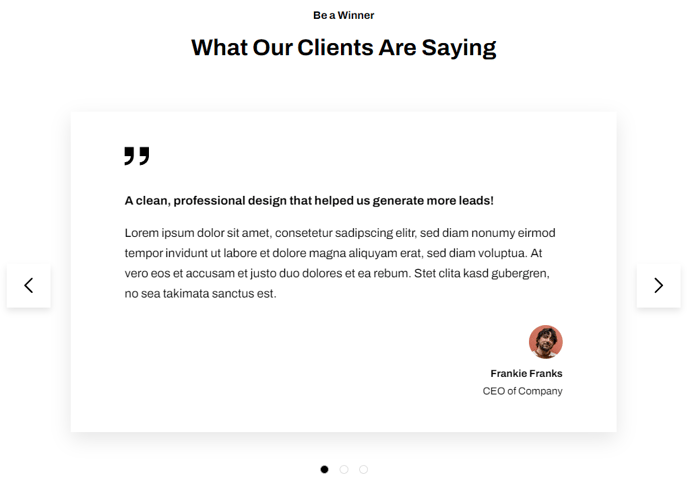
A full-width two-column slider of testimonials with an image in one column and quote text in the other.
View a live demo of this module.
Content
- Include a heading
- Include quote, image, name, and title
- Edit slider screen reader text (next, previous, pagination buttons, etc.)
Styles
- Set Dark Mode
- Change heading and text alignment
- Remove quote decoration
How to Use This Module
The Testimonials Slider module is designed to showcase customer feedback and social proof in an engaging, visual format that’s perfect for SaaS and technology companies. This module works particularly well on your homepage, landing pages, or dedicated testimonials pages where you want to build trust with potential customers.
When you drag this module into the HubSpot page editor, you’ll create a full-width layout that automatically adapts to different screen sizes. The two-column design places customer photos alongside their testimonials, creating a personal connection that plain text reviews can’t match. This visual approach helps visitors quickly scan multiple testimonials without overwhelming the page layout.
Best practices for content editors: Add 3-5 testimonials to create an effective rotation without making users wait too long to see all reviews. When uploading customer images, use square photos (minimum 300x300 pixels) for the most consistent appearance across the slider. Include the customer’s full name and job title to add credibility – generic names or missing titles can make testimonials appear fake.
The module’s accessibility features are built-in, but you can customize the screen reader text to match your brand voice. This is especially important if your site serves international audiences or you want to use more conversational language for navigation controls.
For design consistency, the Dark Mode toggle helps this module blend seamlessly with other Framework theme components on your page. If you’re using multiple testimonial modules across different pages, consider standardizing the heading alignment and quote decoration settings in your theme’s global settings to maintain a cohesive brand experience throughout your HubSpot site.