
Gallery Quote [+ only]
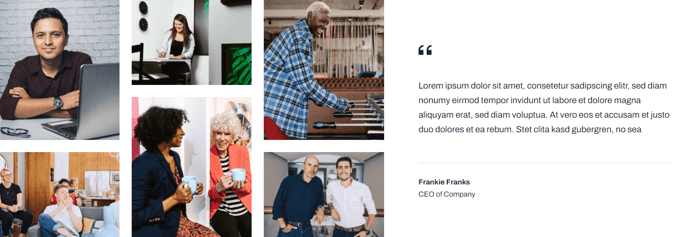
A set of six images in a masonry gallery with a quote to the right.
Note: This section is only available in Framework+, a paid version of Framework.
View a live demo of this section.
Modules
How to Use This Section
The Gallery Quote section creates a striking visual narrative by combining a masonry-style image gallery with an accompanying testimonial or inspirational quote. This layout works exceptionally well for SaaS and technology companies looking to showcase their team, office culture, product development process, or client success stories alongside powerful messaging.
When you add this section to your page through HubSpot’s drag-and-drop page editor, you’ll notice the asymmetrical masonry layout automatically arranges your six images in an aesthetically pleasing grid that avoids the rigid uniformity of traditional galleries. This organic arrangement draws the eye naturally across the images before settling on the quote content to the right.
Choose this section when you want to tell a story through images rather than simply displaying a product catalog. It’s particularly effective on About Us pages where you’re showcasing company culture, on case study pages where you’re illustrating project outcomes, or on service pages where you’re demonstrating your process through behind-the-scenes photography.
The quote module positioned alongside the gallery serves as your narrative anchor—use it to provide context for what visitors are seeing, share customer testimonials related to the images, or communicate your company’s mission and values. The quote styling maintains Framework’s clean aesthetic while ensuring the text has sufficient visual weight to balance the gallery.
For optimal results, select images that share a common theme, color palette, or story arc. The masonry layout works best when your images vary in orientation and composition, creating natural visual rhythm. Remember that both modules inherit your theme’s global styling, but you can customize colors, typography, and spacing through the section’s module settings in the page editor.