
Blog Listing
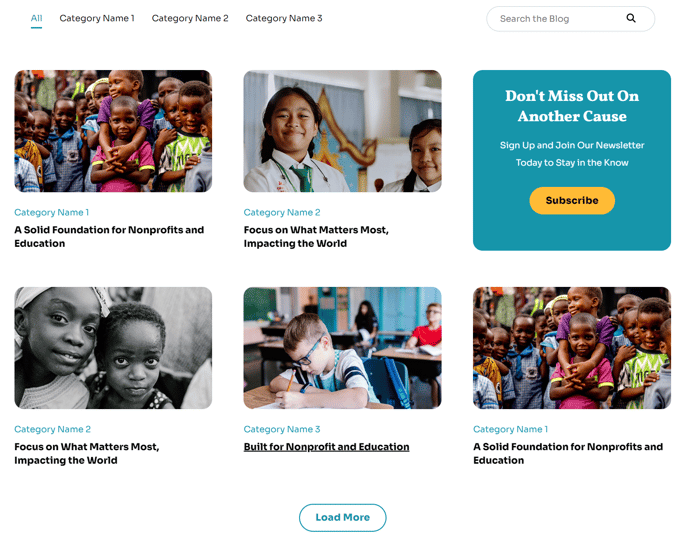
Filterable and searchable listing of blog posts.
Note: In Settings > Website > Blog > Templates set the Number of posts per listing page to 100000000 to ensure the infinite loading works. This module is only available for use on Blog Listing templates.
Content
- Choose the number of posts to show per page
- Edit the tag list to be a dropdown, set a label, use a picklist of tags, and choose to show the tags in the post thumbnails
- Include a call to action box within the listing with a heading and button
- Choose the location of the call to action box (what number post to place it after)
- Edit strings used in the listing (Load More, View All, Search Label, etc)
Styles
- Set to Dark Mode
- Change the Load More button style
- Change the posts’ load in animation
- Change the posts’ image’s hover animation, border radius, aspect ratio, and whether to have them fill the container or be contained within
- Change text alignment and background color of call to action
How to Use This Module
The Blog Listing module is designed specifically for your blog’s main listing page, where visitors browse and discover your organization’s content. Unlike standard HubSpot blog templates, this module transforms your blog into an engaging, interactive experience that keeps readers on your site longer through infinite scroll functionality and advanced filtering options.
When adding this module to your Blog Listing template in the HubSpot page editor, you’ll want to drag it into a full-width section to take advantage of Impact’s bold visual design. The module works best as the primary content area below your blog header, allowing the filterable interface to become the focal point of the page.
Strategic placement of the call-to-action box is crucial for nonprofit and education organizations using this theme. Position it after your 3rd or 6th post to capture engaged readers without interrupting their initial browsing experience. Use this CTA to promote newsletter signups, donation pages, or upcoming events that align with your blog content.
The tag filtering system becomes particularly powerful when you maintain consistent tagging across your HubSpot blog posts. Consider creating a standardized tag structure in your Content Settings that reflects your organization’s key focus areas—such as “Community Impact,” “Research,” or “Student Success”—before implementing the dropdown filter option.
Performance tip: The infinite scroll feature requires the high post count setting mentioned above, but you can still control the user experience through the “posts per page” setting within the module itself. Start with 12-15 posts for optimal loading times, especially if your blog includes high-resolution images that showcase your organization’s work.
Remember to test the dark mode option against your existing brand colors in the theme settings to ensure accessibility compliance for educational institutions.