
Events
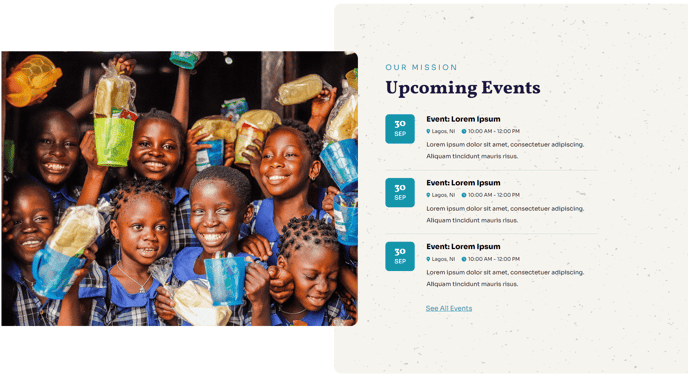
A listing of events with date, time, location, and description.
Note: The section this module is added to should have its Content Alignment set to Full width.
View a live demo of this module.
Content
- Include an image, heading, events, and call to action
- Events can include title, time, date, location, and description
Styles
- Change image height on desktop
- Select image load-in animation
- Set Dark Mode
- Change background of events (color, gradient, image)
- Edit padding around events
- Change heading alignment
- Change eyebrow color
- Edit bottom border styling of events
- Edit background color and border radius of dates
- Edit icon color
Usage Guide
The Events module is designed specifically for nonprofit organizations and educational institutions to showcase upcoming programs, fundraisers, workshops, conferences, and community gatherings. This module works exceptionally well on homepage sections, dedicated events pages, and landing pages where you want to drive attendance and engagement.
When adding this module to your pages in the HubSpot page editor, you’ll find it performs best on About Us, Programs, and custom landing page templates where the full-width layout can accommodate the rich visual presentation that defines the Impact theme. The module’s bold typography and spacious design align perfectly with the theme’s mission to help nonprofits create compelling digital experiences.
Best practices for content editors:
Position this module in sections with light-colored backgrounds when using Dark Mode is disabled, as the default styling optimizes contrast for readability. If your organization runs multiple event types, consider using the background customization options to create visual categories—perhaps gradient backgrounds for fundraising events and solid colors for educational workshops.
The eyebrow text above your heading works well for phrases like “Upcoming Events,” “This Month,” or “Register Now.” Keep event descriptions concise but compelling, focusing on value propositions rather than lengthy details. The date styling with customizable background colors and border radius creates visual hierarchy, so consider using your organization’s brand colors to maintain consistency.
For optimal mobile experience, test your image height settings across devices. The Impact theme’s responsive design ensures your events display beautifully on all screen sizes, but adjusting the desktop image height can improve the visual flow when users scroll through multiple events on smaller screens.