
Large Image - Left Text
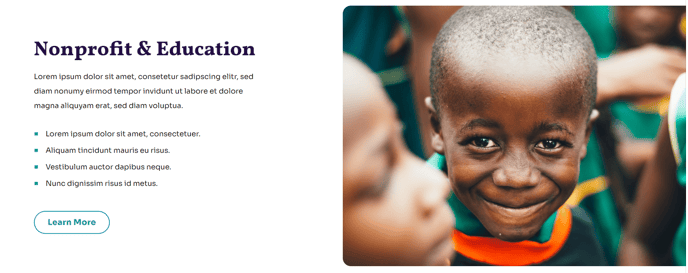
A flush to edge image with left side text.
View a live demo of this section.
Modules
How to Use This Section
The Large Image - Left Text section is designed to create powerful visual storytelling moments on your nonprofit or education website. This section utilizes a split-screen layout where a high-impact image fills the right side of the viewport while your content sits prominently on the left, creating an engaging asymmetrical design that draws visitors’ attention.
When to Choose This Section
This section works exceptionally well for highlighting key programs, showcasing impact stories, or introducing major initiatives. Unlike centered text sections, the left-aligned content area provides ample space for longer descriptions while maintaining visual balance with the accompanying image. Consider using this section on your homepage to feature your primary mission statement, or on program pages to highlight specific services with compelling photography.
Setting Up in the HubSpot Page Editor
You can add this section to any page using the Impact theme by accessing the section library in the page editor’s drag-and-drop interface. Once placed, the Full Width Two Columns module gives you flexible content controls through HubSpot’s visual editor. Upload your image directly through the module settings, ensuring it’s at least 1200 pixels wide for optimal display across devices.
Content Best Practices
For maximum impact, pair this section with images that have strong visual contrast and clear subjects. The flush-to-edge image design means your photo will extend to the browser’s edge, so choose images that work well when cropped. Your left-side text should be concise but compelling – typically 2-3 short paragraphs work best. The bold typography characteristic of the Impact theme ensures your message remains readable even alongside striking visuals.