
Large Image - Right Text
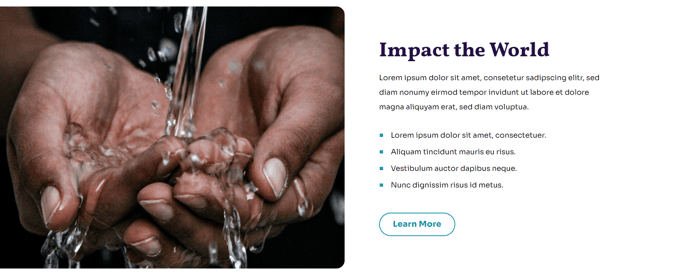
A flush to edge image with right side text.
View a live demo of this section.
Modules
When to Use This Section
The Large Image - Right Text section creates a powerful visual impact by placing a full-width image on the left that extends completely to the browser edge, paired with compelling text content on the right side. This asymmetrical layout works exceptionally well for nonprofit and education organizations that need to showcase their mission, impact stories, or key programs with both visual and written elements.
You’ll find this section most effective on your homepage, about pages, or campaign landing pages where you want to make an immediate emotional connection with visitors. The flush-to-edge image design eliminates white space on the left, creating a more immersive experience than traditional contained layouts.
Setting Up Your Content
When adding this section through HubSpot’s page editor, drag it into your desired position and focus on selecting a high-resolution image that tells your story at a glance. The image will automatically scale to fill the left portion of the screen across all device sizes, so choose photos with clear subjects that remain impactful when cropped on mobile devices.
For the right-side text area, you can include headlines, body copy, buttons, and other content modules. This flexibility makes it ideal for donation appeals, program highlights, or testimonials where you need substantial text alongside your visual.
Design Considerations
The section works best when your image has visual weight that balances the text content. Avoid busy backgrounds behind your text area by selecting images with neutral or darker left edges, ensuring your right-side content remains readable. You can customize colors, typography, and spacing through the Impact theme’s global settings to maintain brand consistency across your site.