
Icon Text
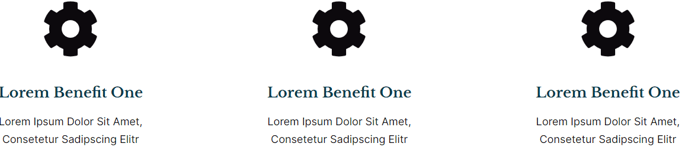
Content block with optional icon, text, and buttons.
**
View a live demo of this module.**
The following is a detailed listing of all the Content and Style fields available in this module.
Content
- Items [Group]
- Layout [Group]
- Icon Position _[Choice]
_Choices: Top, Right, Bottom, Left - Space between icon and text
- Desktop, Tablet, Mobile [Responsive Groups]
- Grid [Common Module Fields]
- Icon Position _[Choice]
- Advanced [Common Module Fields]
Styles
- Dark Mode _[Boolean]
_Check to use Dark Mode colors set in the Theme Settings. - Module [Group]
- Icon [Group]
- Box Styles [Common Module Fields]
- Text Alignment [Group]
- Desktop, Tablet, Mobile [Responsive Alignment]
- Eyebrow [Group]
- Font Styles [Common Module Fields]
- Heading [Group]
- Font Styles [Common Module Fields]
- Subheading [Group]
- Font Styles [Common Module Fields]
- Text [Group]
- Font Styles [Common Module Fields]
- Lists [Group]
- List Styles [Common Module Fields]
How to Use This Module
The Icon Text module is designed to create visually engaging content blocks that combine iconography with written content, making it perfect for highlighting key features, services, or benefits on your HubSpot pages. This versatile module works exceptionally well on homepage hero sections, service pages, and landing pages where you need to break down complex information into digestible, scannable content.
When adding this module through the HubSpot page editor, you’ll find it particularly useful for creating feature grids on product pages, benefit highlights for educational institutions, or service showcases for corporate sites. The module’s responsive grid system automatically adapts your content layout across devices, ensuring your icon-text combinations remain visually balanced whether viewed on desktop, tablet, or mobile.
Pro tip: Take advantage of the flexible icon positioning options to create varied visual rhythms on your page. Alternating between left and top icon positions can break up monotonous layouts and keep visitors engaged. The spacing controls allow you to fine-tune the visual relationship between your icons and text content.
The Dark Mode toggle connects directly to your theme settings, so you can quickly switch color schemes without manually adjusting individual styling options. This is especially valuable for educational institutions that may need to meet accessibility requirements or simply want to offer users viewing preferences.
For optimal results, consider using this module in sets of three or four items, as this creates natural visual groupings that align with common web design patterns. The built-in button functionality means you can turn each icon-text block into an actionable element, perfect for driving traffic to specific program pages, resource downloads, or contact forms.