
Logos
Display company logo or a grid/slider of logos.
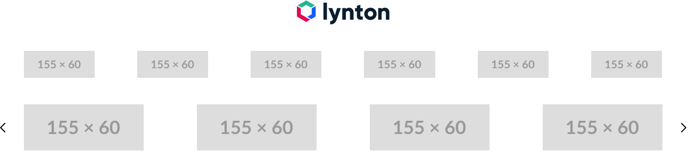
**
View a live demo of this module.**
The following is a detailed listing of all the Content and Style fields available in this module.
Content
-
Content Type [Repeater Group]
-
Logos _[Group]_If Content Type is set to Logo Grid or Logo Slider
- Logo [Image]
- Link [Link]
-
Is header logo? [Boolean]
If Content Type is set to Company Logo. If using this module in the theme sticky header, checking this will allow you to use an alternate logo for when the header becomes sticky on scroll. -
Logo _[Logo]
_If Content Type is set to Company Logo. -
Link _[Link]
_If Content Type is set to Company Logo. By default, logo link is pulled from the Logo link field in Settings > Logo > Branding. -
Sticky Logo _[Logo]
_If Content Type is set to Company Logo. Alt text of the rendered logo will always be that of the default logo. -
Layout [Group]
-
Advanced [Common Module Fields]
Styles
- Dark Mode _[Boolean]
_Check this to use Dark Mode colors set in the Theme Settings. - Module [Group]
- Module Styles [Common Module Fields]
- Slider [Group]
- Slider Styles [Common Module Fields]
Usage Guide
The Logos module serves three distinct purposes in your HubSpot site, making it one of the most versatile components in the Rubric theme. You can display your main company logo in headers and footers, showcase client testimonials through logo grids, or highlight partner organizations with rotating logo sliders.
When implementing this module on education institution sites, use the logo grid format to display accreditation bodies, partner universities, or corporate sponsors. Event websites benefit from logo sliders that cycle through sponsor logos without consuming excessive vertical space. Resource-heavy sites can leverage logo grids on landing pages to build credibility by showcasing clients or featured organizations.
For company logo implementation, drag this module into your header template within the HubSpot page editor. The sticky logo functionality is particularly valuable—when visitors scroll down, your header can transition to a more compact logo version while maintaining brand visibility. Configure both logos in the module settings rather than relying solely on global theme settings for maximum flexibility.
Logo grid and slider configurations work best when you maintain consistent logo dimensions and styles. Upload logos with transparent backgrounds when possible, and consider your grid column settings across different device breakpoints. The responsive grid controls allow you to display six logos per row on desktop while automatically adjusting to two columns on mobile devices.
The Dark Mode toggle proves essential when placing logo modules on colored backgrounds or when your site uses the theme’s dark mode functionality. This ensures logo visibility remains optimal regardless of the underlying page design, particularly important for education and corporate sites where brand recognition is crucial.