
People
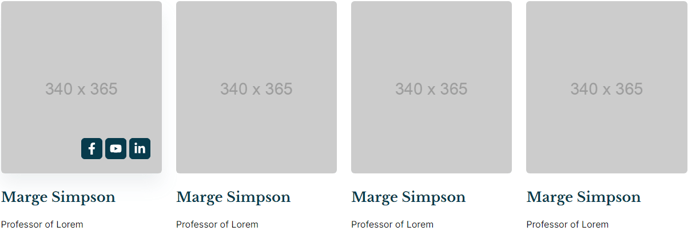
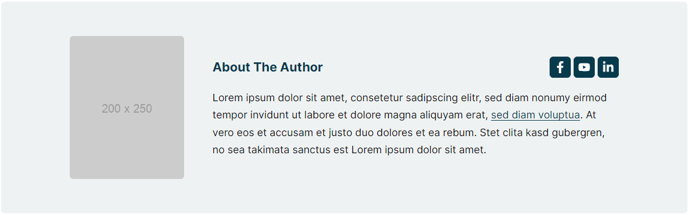
Showcase groups of people such as team members, speakers, instructors, etc. or display a singular blurb.
**Example 1
 **
**
**Example 2
 **
**
View a live demo of this module.
The following is a detailed listing of all the Content and Style fields available in this module.
Content
-
Content Type [Choice]
Choices: Static Listing, Single Blurb -
Use Blog Post/Listing Author [Boolean]
If Content Type is set to Single Blurb. If used on a blog post or blog author listing page, will dynamically fill in content using blog author data. -
Portrait [Image]
If Content Type is set to Single Blurb. -
Social Media Links [Group]
If Content Type is set to Single Blurb.- Social Media Link [Common Module Fields]
-
Text [Common Module Fields]
If Content Type is set to Single Blurb. -
People [Repeater Group]
If Content Type is set to Static Listing- Portrait [Image]
- Social Media Links [Repeater Group]
- Social Media Link [Common Module Fields]
-
- Text [ Common Module Fields]
-
Layout [Group]
- Space between icons [Number]
- Desktop, Tablet, Mobile [Responsive Groups]
If Content Type is set to Static Listing- Grid [Common Module Fields]
-
Advanced [Common Module Fields]
Styles
- Dark Mode [Boolean]
Check to use Dark Mode colors set in the Theme Settings. - Module [Group]
- Module Styles [Common Module Fields]
- Image [Group]
- Animation _[Choice]
_Choices: None, Fade In, Fade In Up, Fade In Right, Fade In Down, Fade In Left - Box Styles [Common Module Fields]
- Animation _[Choice]
- Text [Group]
- Text Styles [Common Module Fields]
- Socials [Group]
- Social Link Styles [Common Module Fields]
How to Use This Module
The People module is designed to help you showcase individuals or teams in a professional, visually appealing format. This module is particularly valuable for educational institutions displaying faculty, event organizers highlighting speakers, or any organization wanting to put faces to names.
You can add the People module to any page in your HubSpot page editor by dragging it from the modules panel into your desired location. The module offers two distinct Content Types to match different scenarios. Choose Static Listing when you need to display multiple team members, speakers, or staff with consistent formatting across a grid layout. This option works exceptionally well on About Us pages, conference speaker pages, or faculty directories.
Select Single Blurb when you want to highlight one individual, such as a featured instructor on a course page or an author bio. The Use Blog Post/Listing Author option becomes particularly powerful here—when enabled on blog templates, it automatically pulls author information from your HubSpot blog settings, eliminating manual updates.
Pro tip: Take advantage of the responsive grid settings under Layout to ensure your people grid displays appropriately across devices. For mobile viewing, consider reducing the number of columns to maintain readable portrait sizes and text.
The Dark Mode toggle integrates seamlessly with your theme settings, making it easy to maintain visual consistency if your site uses dark sections. When adding social media links, remember that these will inherit the styling from your Social Link Styles settings, so they’ll automatically match your brand colors and hover effects.
For educational sites, this module works exceptionally well on program pages, department listings, and course detail pages where showcasing qualified instructors builds credibility and trust with prospective students.