
Pricing Boxes
Display prices and information for services, product packages, etc.
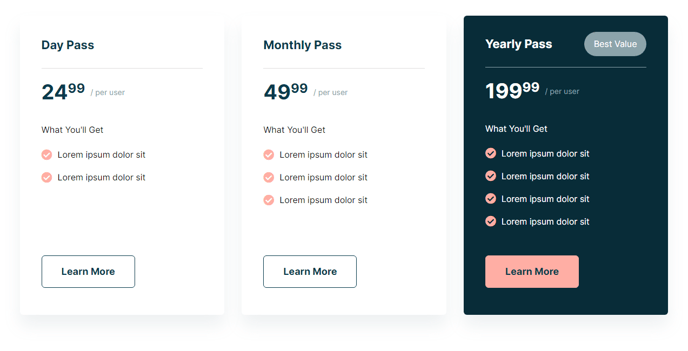
View a live demo of this module.
The following is a detailed listing of all the Content and Style fields available in this module.
Content
- Pricing Boxes [Group]
- Layout [Group]
- Desktop, Tablet, Mobile [Responsive Groups]
- Grid [Common Module Fields]
- Desktop, Tablet, Mobile [Responsive Groups]
- Advanced [Common Module Fields]
Styles
- Module [Group]
- Module Styles [Common Module Fields]
- Default Box [Group]
- Dark Mode [Boolean]
Check to use Dark Mode colors set in the Theme Settings - Title [Group]
- Font Styles [Common Module Fields]
- Border [Border]
- Price [Group]
- Font Styles [Common Module Fields]
- Cents [Group]
- Font Styles [Common Module Fields]
- Description [Group]
- Font Styles [Common Module Fields]
- Additional Info [Group]
- Text Styles [Common Module Fields]
- Buttons [Group]
- Alignment [Alignment]
- Box Styles [Common Module Fields]
- Dark Mode [Boolean]
- Featured Box [Group]
- Dark Mode [Boolean]
Check to use dark mode colors set in the Theme Settings - Title [Group]
- Font Styles [Common Module Fields]
- Border [Border]
- Feature Label [Group]
- Font Styles [Common Module Fields]
- Box Styles [Common Module Fields]
- Price [Group]
- Font Styles [Common Module Fields]
- Cents [Group]
- Font Styles [Common Module Fields]
- Description [Group]
- Font Styles [Common Module Fields]
- Additional Info [Group]
- Text Styles [Common Module Fields]
- Buttons [Group]
- Alignment [Alignment]
- Box Styles [Common Module Fields]
- Dark Mode [Boolean]
How to Use This Module
The Pricing Boxes module is designed to showcase your products or services in a professional, comparison-friendly layout that encourages conversions. This drag-and-drop module works particularly well on dedicated pricing pages, service overview pages, and product comparison sections throughout your HubSpot site.
When adding this module through the page editor, you can create multiple pricing tiers that automatically arrange in a responsive grid. The featured product option allows you to highlight your most popular or recommended option with distinct styling and an eye-catching label like “Most Popular” or “Best Value.” This visual hierarchy guides visitors toward your preferred conversion path.
Best practices for content editors:
Configure your pricing structure using the flexible text fields for price, superscript (perfect for currency symbols or small text), and descriptors (like “per month” or “one-time fee”). The Additional Information section supports rich text formatting, making it ideal for bullet-pointed feature lists, short descriptions, or terms and conditions.
The responsive grid settings ensure your pricing boxes look polished across all devices. On desktop, you might display three boxes side-by-side, while mobile automatically stacks them vertically for easy scrolling and comparison.
Theme integration tips:
Take advantage of the Dark Mode toggle to match sections with darker backgrounds or create visual contrast. The featured box styling is completely independent from default boxes, allowing you to create striking visual differences between standard and premium offerings.
This module pairs exceptionally well with testimonial or FAQ modules on pricing pages, and the multiple button options per box let you offer different actions like “Start Free Trial,” “View Details,” or “Contact Sales” based on your conversion strategy.