
Blog Post - Sidebar
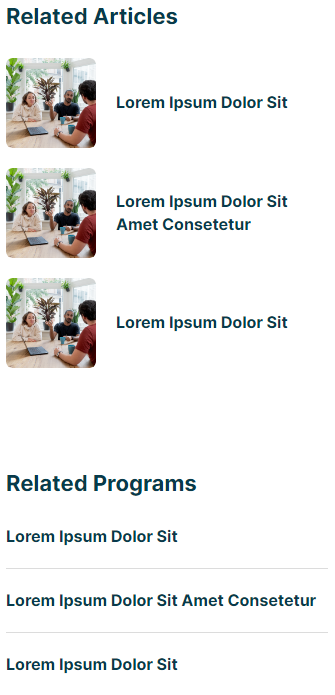
Section displayed to the right of the blog post content for listing out other resources and links.
View a live demo of this partial here.
The following is a detailed listing of the styling edits made to the partial’s sections, the modules used in the sections, and field changes from the modules’ default state.
Section 1
Section Styles
Alignment and spacing > Content alignment
Full Width
Alignment and spacing > Padding
Top: 0
Bottom: 0
Modules
Visible Elements
Heading
Semantic Heading Level
3
Style Heading Level
4
Styles > Module > Spacing > Desktop > Padding
Bottom: theme.global.spacing.rows
Card Style
List
Data Source
Blog
Blog Posts > Post Type
Related
Blog Posts > Include
Thumbnail
Layout > Add Divider
false
Layout > Desktop
Thumbnail Position: Left
Row Spacing: 20
Image Spacing: 20
Layout > Tablet
Thumbnail Position: LeftRow Spacing: 20Image Spacing: 20
Layout > Mobile
Thumbnail Position: LeftRow Spacing: 20Image Spacing: 20
Styles > Card > Box Shadow
Animate: None
Styles > Thumbnail > Aspect Ratio
1:1
Styles > Thumbnail > Width
90
Styles > Title > Font
Size: theme.typography.body_text_mediuam.font.size
Mobile Size: theme.typography.body_text_mediuam.font.size
Visible Elements
Heading
Semantic Heading Level
3
Style Heading Level
4
Styles > Module > Spacing > Desktop > Padding
Top: theme.global.spacing.sections
Bottom: theme.global.spacing.rows
Card Style
List
Data Source
Blog
Blog Posts
Related
Layout > Desktop
Row Spacing: 20
Layout > Tablet
Row Spacing: 20
Layout > Mobile
Row Spacing: 20
Styles > Card > Box Shadow
Animate: None
Styles > Title > Font
Size: theme.typography.body_text_mediuam.font.size
Mobile Size: theme.typography.body_text_mediuam.font.size
Usage Guide
The Blog Post Sidebar is a crucial component for enhancing user engagement and content discovery on your HubSpot blog pages. This partial automatically appears alongside your blog content, providing visitors with curated related posts and additional resources without requiring manual updates for each blog article.
When editing your blog posts in the HubSpot page editor, this sidebar populates dynamically based on your content’s tags and topics. The Listed Resources modules are configured to pull related blog posts automatically, helping visitors discover more relevant content and increasing your site’s session duration. This is particularly valuable for educational institutions and resource-heavy sites where cross-referencing content is essential.
For content editors, you can customize the sidebar headings through the Text Block modules to better align with your institution’s terminology. Consider changing “Related Posts” to “Additional Resources,” “Further Reading,” or “Recommended Articles” depending on your audience. These heading changes update across all blog posts since this is a global partial.
The thumbnail configuration uses a 1:1 aspect ratio with 90px width, creating clean, uniform visual presentation that works well with educational content, event photography, and institutional imagery. The left-aligned thumbnails maintain readability while providing visual interest.
Best practices include ensuring your blog posts have proper tags and topic assignments in HubSpot, as these drive the related content algorithm. The dual Listed Resources modules allow for different content groupings – you might configure one for recent posts and another for evergreen resources. Remember that changes to this partial affect your entire blog, making it an efficient way to maintain consistent navigation and content discovery across all posts.