
System - Password Prompt
Partial for us one System - Password Prompt template.
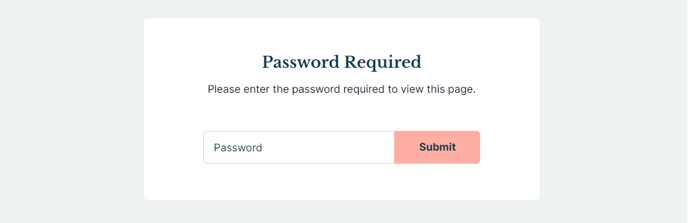
The following is a detailed listing of the styling edits made to the partial’s sections, the modules used in the sections, and field changes from the modules’ default state.
Section 1
Section Styles
Alignment and spacing > Content alignment
Full Width
Alignment and spacing > Padding > Default
Top: 50
Right: 90
Bottom: 50
Left: 90
Alignment and spacing > Padding > Mobile
Top: 50
Right: 50
Bottom: 50
Left: 50
Background > Background color
theme.global.colors.backgrounds.base.color
Modules
Styles > Max Width
600
Styles > Borders > Radius
theme.global.borders.radius
Visible Elements
Heading
Semantic Heading Level
1
Style Heading Level
3
Text Size
Medium
Styles > Module > Spacing > Desktop > Margin
Bottom: 35
Styles > Text Alignment
Desktop: Center
Styles > Text > Margin > Top
0
Page Type
Password Prompt
Form Layout > Button Position
Full
About This Feature
The System - Password Prompt partial is specifically designed to handle HubSpot’s built-in password protection functionality for private pages. This global partial automatically displays when visitors attempt to access password-protected content on your site, creating a consistent branded experience that matches your Rubric theme styling.
Unlike custom password forms you might build with regular modules, this system partial integrates directly with HubSpot’s native page security features. When you enable password protection in the page settings of any page within your site, HubSpot will automatically render this partial to challenge visitors for the correct credentials.
Key advantages of this approach include seamless integration with HubSpot’s user management system and automatic session handling once the correct password is entered. The partial’s clean, centered design works particularly well for education institutions that need to protect student resources, event organizers managing exclusive content, or any organization with member-only materials.
The Page Settings module within this partial is configured with a constrained 600px maximum width and rounded corners that align with the Rubric theme’s design language. This creates a focused, card-like appearance that draws attention to the password field without overwhelming the user.
When customizing this partial in the page editor, you can modify the heading text in the Text Block module to provide context-specific instructions. For example, you might change the default heading to “Student Portal Access” or “Members Only Area” depending on your use case. The System Page Content module handles all the technical aspects of password validation, so you only need to focus on the messaging and visual presentation.
Remember that changes to this global partial will affect the password prompt appearance across your entire site, ensuring consistent branding for all protected content areas.