
Blog Listing - Recent Tag
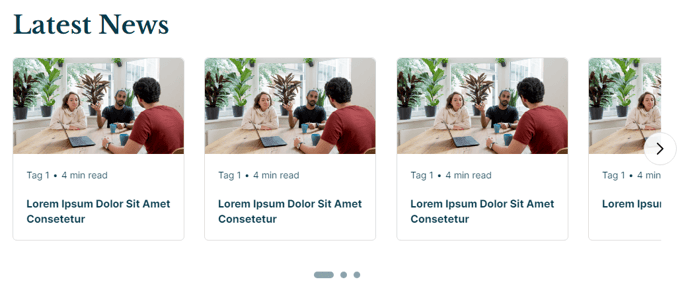
A slider of recent blog posts with a particular tag.
View a live demo of this section here.
The following is a detailed listing of the styling edits made to the section, the modules used in the section, and field changes from the modules’ default state.
Section Styles
Alignment and spacing > Content alignment
Full Width
Modules
Styles > Module > Spacing
desktop: {padding: {bottom: theme.global.spacing.rows}}
Card Style
Slider
Data Source
Blog
Blog Posts > Post Type
Recent
Blog Posts > Include
Tags, Read Time, Thumbnail
Blog Posts > Query
Limit: 15
Query By: Tags
Layout > Text Tags Position
Top
Layout > Carousel Rewind
false
Layout > Desktop
Per Page: 3
Per Move: 3
List Padding > Right: 140
Layout > Tablet
Per Page: 2
Per Move: 2
List Padding > Right: 140
Layout > Mobile
Per Page: 1Per Move: 1**
List Padding > Right: 140**
Styles > Text Tags > Divide
Bullet
Styles > Text Tags > Font
Size: theme.typography.body_text_small.font.size
Styles > Slider > Arrows
Remove Disabled Arrows: true
Position: Inside
Usage Guide
This Blog Listing - Recent Tag section is perfect for creating dynamic, tag-focused content displays that keep your visitors engaged with relevant blog content. Unlike static blog listings, this section automatically pulls in your most recent posts filtered by specific tags, making it ideal for educational institutions showcasing research categories, events highlighting different topics, or resource sites organizing content by subject matter.
You can add this section to any page through HubSpot’s drag-and-drop page editor by selecting it from the Rubric sections library. The section works particularly well on topic landing pages, resource hubs, and department homepages where you want to highlight recent content around specific themes without manual updates.
Setting up your tag filter requires you to configure the query parameters in the Listed Resources module. Navigate to the Blog Posts settings and specify which tags you want to include in the “Query By” field. The section will automatically display the 15 most recent posts matching those tags, ensuring your content stays fresh without ongoing maintenance.
Customizing the slider behavior gives you control over how visitors navigate your content. The carousel is configured to show three posts on desktop, two on tablet, and one on mobile, with navigation arrows positioned inside the content area. You can adjust the “Per Move” settings to control whether visitors advance through posts one at a time or in groups.
For optimal results, ensure your blog posts have consistent tagging practices and high-quality featured images, as the thumbnails play a key role in the visual appeal of this slider-based layout.