
Personal Details
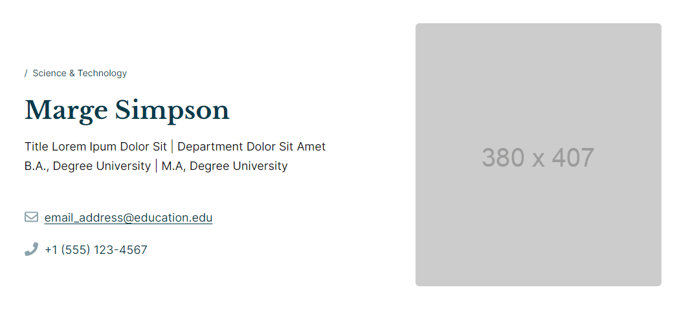
A section with text, single-line icon text for contact information, and an image displaying personal details of staff, faculty, instructors, etc. Section overlaps the section above it.
View a live demo of this section here.
The following is a detailed listing of the styling edits made to the section, the modules used in the section, and field changes from the modules’ default state.
Section Styles
Alignment and spacing > Max width
theme.global.max_width_narrow
Alignment and spacing > Vertical alignment
Middle
Background > Color
theme.global.colors.backgrounds.base.color
Modules
Section Options
Overlap
Overlap > Section
Above
Overlap > Max Width
theme.global.max_width_wide
Visible Elements
Eyebrow, Heading, Body Text
Styles > Module > Max Width
540
Layout > Icon Position
Left
Layout > Desktop
Columns: 1
Row Spacing: 20
Justify: Start
Layout > Tablet
Columns: 1
Layout > Mobile
Columns: 1
Width Type: Even
Justify: Start
Styles > Module > Spacing > Desktop > Padding
Top: theme.global.spacing.rows * 2
Styles > Alignment
Desktop: Left
Layout > Desktop
Columns: 1
Layout > Tablet
Columns: 1
Layout > Mobile
Columns: 1
Styles > Module > Animation
Fade Up
About This Section
The Personal Details section is designed to create professional staff or faculty profiles that visually stand out on your pages through its distinctive overlapping layout. This section works exceptionally well for education institutions showcasing faculty members, training organizations highlighting instructors, or any organization that needs to present team member credentials in an engaging format.
When you add this section to a page in the HubSpot page editor, it automatically positions itself to overlap the section above it, creating a dynamic layered effect that breaks up traditional page flow. This overlap feature makes it particularly effective when placed after hero sections or image-heavy content blocks.
The section combines three core modules to create a comprehensive profile layout. The Text Block serves as your primary content area where you can include biographical information, qualifications, or role descriptions. The Icon Text module is specifically configured for contact details—think email addresses, phone numbers, office locations, or social media links—with icons positioned to the left for easy scanning. The People module displays the staff member’s photo with consistent formatting across your site.
Best practices for content editors: Keep the Text Block module content concise since the narrow max-width setting optimizes for readability. When using the Icon Text module, limit yourself to 3-4 contact methods to maintain visual balance. For the People module, use high-quality headshots with consistent lighting and backgrounds across all staff profiles to maintain a professional appearance.
This section works particularly well on dedicated staff directory pages, individual faculty profile pages, or as part of course landing pages where instructor credibility is important for enrollment decisions.