
Blog Featured Posts
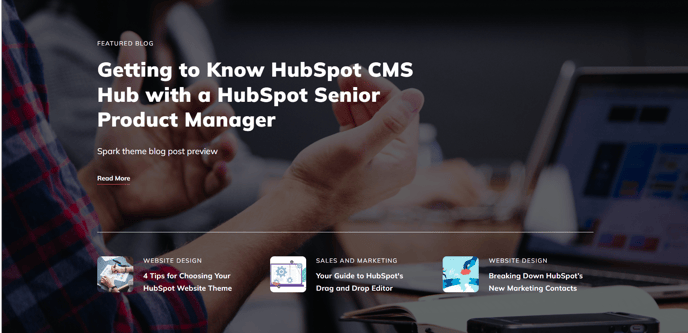
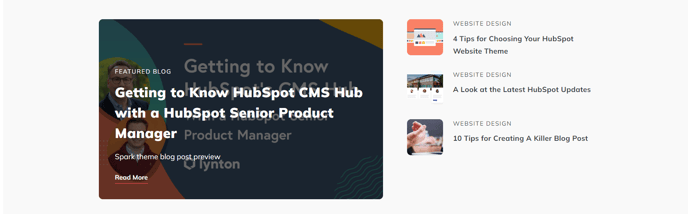
A hero section to feature blog posts by most recent, most popular, or particular tags; or manually choose posts.
View a live demo of this module.
Content
- Choose to pull most recent posts, popular posts, posts with a specific tag, or manually select posts
- Choose blog to pull posts from (if unselected will pull posts from the listing page the module is currently on)
- Edit eyebrow text on large callout post
- Show/hide callout post
- (If callout post) Show/hide summary
- (If callout post) Choose summary type (meta description, post summary, post body)
- (If callout post) Set max word count of summary
- (If callout post) Change text alignment
- (If regular post) Show/hide thumbnail
- (If regular post) Show/hide date
- (If regular post) Show/hide tag
- (If regular post) Change thumbnail placement (top, right, bottom, left)
- (If regular post) Change text alignment
- Set regular post listing direction (vertical, horizontal)
Styles
- Set dark mode
- Set dark mode on posts listing on mobile
- Add a background image
- Add a background overlay
- Edit module spacing
How to Use This Module
The Blog Featured Posts module serves as an eye-catching hero section that transforms your blog content into a visually compelling showcase. This module works exceptionally well on your site’s homepage, dedicated blog landing pages, or topic-specific pages where you want to highlight your best content and drive reader engagement.
When you drag this module into the HubSpot page editor, you’ll notice it creates a dual layout design — featuring one large callout post alongside a grid of smaller featured posts. This asymmetrical approach draws immediate attention to your primary featured content while still showcasing additional relevant posts.
Best practices for content selection: Use the “most popular” option when you want to highlight proven performers that generate the most engagement. Choose “most recent” for time-sensitive content or to showcase your latest insights. The manual selection option gives you complete editorial control — perfect for curating posts around specific campaigns or themes.
The module’s responsive design automatically adapts between desktop and mobile views. On mobile devices, you can enable the separate dark mode setting for the posts listing section, which often improves readability when users are viewing your site in different lighting conditions.
Page placement strategy: Position this module early in your page hierarchy, typically in the first or second content section, since it’s designed to capture attention and guide visitors deeper into your blog content. The background image and overlay options make it particularly effective as a replacement for traditional hero banners when you want to combine visual impact with content discovery.
For multi-blog HubSpot accounts, remember that leaving the blog selection field empty will automatically pull from whatever blog corresponds to the current page context.