
Team Listing
A listing of team members.
View a live demo of this module.
Content
-
Add a filter to the listing
-
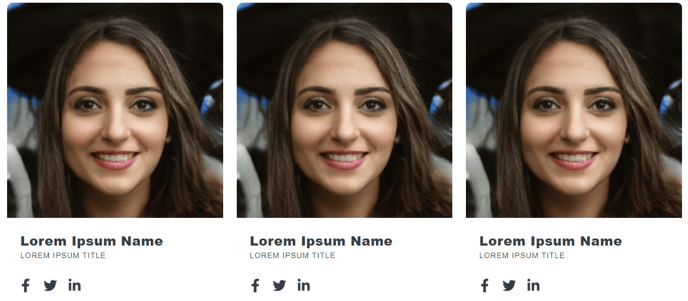
Include a portrait, name, title, bio, and social links for each member
-
Change how many members to show per row
-
Add a default image
Styles
- Set Dark Mode
- Change text alignment
- Change team member background color
- Change font color and background color of active and inactive filters
- Edit border styles for filters (radius, width, color)
- Edit border styles of team members (radius, width, color)
- Change border radius of team member image
Note: Edit these global styles from your Theme Settings under the Components > Team Listing section.
- Change member border radius and border color

How to Use This Module
The Team Listing module is designed to showcase your organization’s team members in a professional, organized layout that helps visitors connect with the people behind your business. This module works exceptionally well on About Us pages, Meet the Team sections, and company overview pages where building trust and personal connection is important.
When you drag this module into the HubSpot page editor, you’ll notice it automatically creates a grid layout that adapts to different screen sizes. The filtering functionality is particularly powerful for larger organizations – you can create departments, roles, or location-based filters that allow visitors to quickly find specific team members without scrolling through everyone.
Setting up your team members is straightforward through the module’s content tab. Each team member entry includes dedicated fields for professional headshots, which the module automatically crops to maintain visual consistency across your grid. The social links section supports multiple platforms and displays as clean icon links beneath each member’s bio.
For optimal visual impact, upload square images at least 400x400 pixels for team member photos. The module’s border radius settings can transform these into circles or rounded squares to match your brand aesthetic. If some team members don’t have photos available, the default image feature ensures your grid maintains a professional appearance.
Layout flexibility allows you to adjust members per row based on your team size and page layout. Three members per row works well for executive teams, while four or five per row suits larger departments. The dark mode toggle is especially useful for pages with darker color schemes or when you want the team section to stand out against your page background.