
Image and Text - Image Left
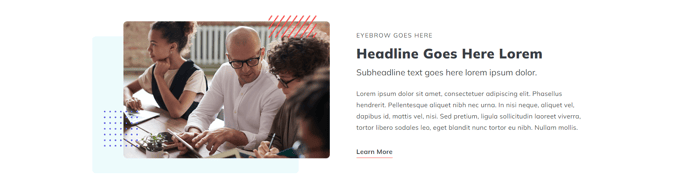
Two column section with image on the left, text on the right.
View a live demo of this section.
Modules:
- Theme Rich Text
- HubSpot Linked Image
Usage Guide
This section provides a classic two-column layout that’s perfect for introducing products, services, or key concepts on your HubSpot pages. The Image and Text - Image Left section automatically arranges your content in a visually balanced format, with the image taking up the left column and your text content flowing naturally in the right column.
You can add this section to any page in your HubSpot account by accessing the page editor and selecting it from the Spark Premium sections library. Once added, simply drag and drop it into your desired position on the page. The section works particularly well on landing pages, service pages, and About Us pages where you need to explain concepts while maintaining visual interest.
The Theme Rich Text module gives you complete control over your text formatting, allowing you to add headings, bullet points, links, and styled text that matches your brand. You can adjust font sizes, colors, and spacing through the theme settings to ensure consistency across your site.
The HubSpot Linked Image module lets you upload any image and optionally link it to another page or external URL. This is especially useful for product showcases where you want visitors to click through to detailed product pages, or for featuring team members with links to their individual bio pages.
Pro tip: This section works best when your image has a vertical or square orientation, as it maximizes the visual impact in the left column. For optimal mobile display, ensure your text content isn’t too lengthy, as both columns will stack vertically on smaller screens. Consider using this section early on your pages to immediately communicate your value proposition with both visual and textual elements.