
Hero Banner
Highly customizable hero banner.
View live demo of this module.
Content
- Include a logo, text, CTAs, text, and media (image or form)
- Set position of text to left, right, center, or full width
- Include a down arrow
- Add differing backgrounds for desktop and mobile
- Add overlay to background
Styles
- Set Dark Mode
- Edit module spacing
Note: Edit these following styles from your Theme Settings under the Components > Hero section.
- Change max width of columned and centered content
- Change background overlay color
- Change down arrow background and icon color
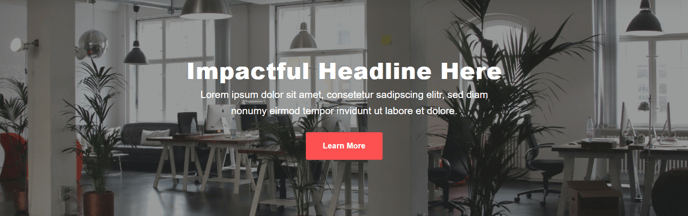
How to Use This Module
The Hero Banner module serves as your website’s primary focal point, typically placed at the top of landing pages, home pages, and campaign-specific pages within your HubSpot site. This versatile module is designed to capture visitor attention immediately and guide them toward your most important conversion goals.
When adding the Hero Banner through HubSpot’s drag-and-drop page editor, you’ll find it works exceptionally well on website pages, landing pages, and system pages where you need to make a strong first impression. The module’s flexible content positioning options make it ideal for A/B testing different layouts to optimize conversion rates.
Best practices for content editors:
The logo field is particularly useful for partner pages or co-branded campaigns where you need to display multiple brand identities. When using forms within the hero, keep them short (3-4 fields maximum) to maintain the visual balance of the design.
Take advantage of the different desktop and mobile background options to ensure your hero looks compelling across all devices. Mobile users often need simplified messaging, so consider using a less complex background image on mobile while maintaining your detailed desktop design.
The down arrow feature serves as a subtle navigation cue, encouraging visitors to scroll and explore more of your page content. This is especially valuable on longer landing pages where you want to guide users through your complete story.
Theme customization tip: Access the Theme Settings panel to adjust global hero styling that will apply across all hero banners on your site, ensuring consistent branding. Individual module settings will override these global defaults when needed for specific campaigns or pages.