
Icons with Text
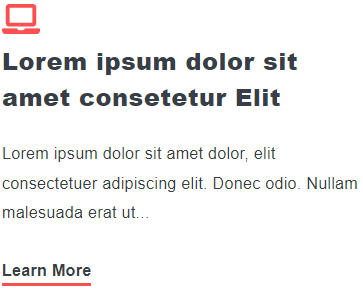
Simple box of text with an icon.
View a live demo of this module.
Content
- Add a FontAwesome icon or custom image
- Change max icon height
- Add a CTA
Styles
- Set Dark Mode
- Split lists into two columns
- Change text alignment
- Change icon placement (top, top center, right, left)
- Edit module spacing
Note: Edit these following styles from your Theme Settings under the Components > Icon with Text section.
- Change icon color
- Set Dark Mode icon color
How to Use This Module
The Icons with Text module is perfect for creating feature highlights, service listings, or benefit showcases on your HubSpot pages. This versatile module combines visual icons with descriptive text to help break up content-heavy pages and draw attention to key points. You’ll find it particularly effective on homepage feature sections, about pages, and service landing pages where you need to communicate multiple benefits or features at a glance.
When adding this module through the HubSpot page editor’s drag-and-drop interface, you can choose between FontAwesome icons for consistent web iconography or custom images for brand-specific graphics. The custom image option is especially useful when you need to showcase product screenshots, logos, or unique illustrations that align with your brand identity.
Pro tip: Use the two-column layout option when displaying multiple icons with text to create organized, scannable content sections. This works exceptionally well for feature comparisons or step-by-step processes.
The icon placement settings give you creative flexibility to match your page’s visual hierarchy. Top-centered icons work well for service highlights, while left-aligned icons are ideal for feature lists or process steps. Right-aligned icons can create interesting visual flow when alternating with other content modules.
Don’t overlook the Theme Settings integration for icon colors. By setting consistent icon colors in your theme settings rather than customizing each module individually, you’ll maintain brand consistency across all your pages while saving time during content creation. The separate dark mode color settings ensure your icons remain visible and on-brand when visitors switch to dark mode viewing.
This module pairs excellently with the Spark theme’s other content modules, particularly when building comprehensive landing pages or detailed service descriptions.