
Tabs
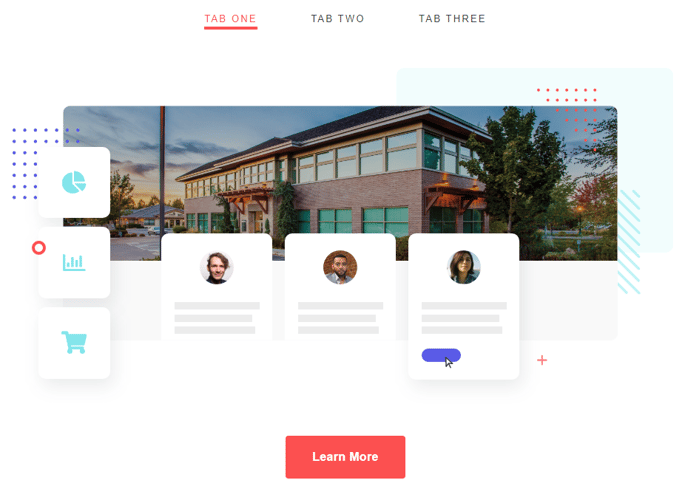
Condensed content with a tabbed list.
View a live demo of this module.
Content
- Add columns to each tab
- Make columns evenly sized or set a specific width
- Include text, CTAs, images, and/or forms
Styles
- Set Dark Mode
- Change text alignment
- Edit padding
How to Use This Module
The Tabs module is designed to organize related content in a space-efficient format, making it perfect for FAQ sections, product feature comparisons, or service descriptions on your marketing pages. You can drag this module onto any page template in the HubSpot page editor, and it works particularly well on landing pages where screen real estate is valuable.
When setting up your tabbed content, consider organizing information by priority or logical groupings. The first tab will display by default when visitors land on your page, so place your most important content there. Each tab can contain multiple columns, giving you flexibility to create side-by-side layouts within individual tabs—ideal for comparing features or showcasing before/after scenarios.
Content Strategy Tips:
- Keep tab labels concise (1-3 words work best)
- Use parallel structure for tab names (all verbs or all nouns)
- Limit yourself to 3-5 tabs to avoid overwhelming users
- Place your strongest call-to-action in the first tab
The Dark Mode style option automatically adapts to your theme’s color scheme, ensuring consistency across your site. When adjusting padding in the Styles section, remember that mobile users will interact differently with tabs—test your spacing on various devices using HubSpot’s preview options.
This module integrates seamlessly with HubSpot’s forms and CTA tools, making it excellent for lead generation campaigns where you want to present multiple offers or content types without cluttering the page. The responsive design ensures tabs remain functional and visually appealing across all device types, automatically stacking on mobile when necessary.