
Blog Listing
Module with masonry style and infinite load listing of blog posts.
Note: This module is only able to be used on the Blog Listing template.
Content
- Post Options:
- Select content to show (read time, author, date, tag, image, summary and/or button)
- Set a limit on number of tags that can appear
- Set a limit on what specific tags can appear
- Set custom date format
- Select summary type (summary, body, meta description)
- Change max summary length
- Change button text and color
- Include topic, author, and/or date filters
- If including a topic or author filter:
- Choose to pull in the most popular tags or manually select specific tags to include
- Limit the number of tags to include in the filter
- If including a date, filter to set a maximum number of links to include
- Edit text strings used throughout the module (no results message, button labels, tag spacer, etc.)
Styles
- Set Dark Mode
- Show search field
- Change spacing between rows and columns
- Set how many cards to show per row on desktop and tablet
- Change background color of cards
- Change style of card (normal or slide up)
- Change aspect ratio of image
- Add hover animation to image (zoom in, zoom out, grayscale, color)
- Add border radius to top of image
- Change text alignment of cards
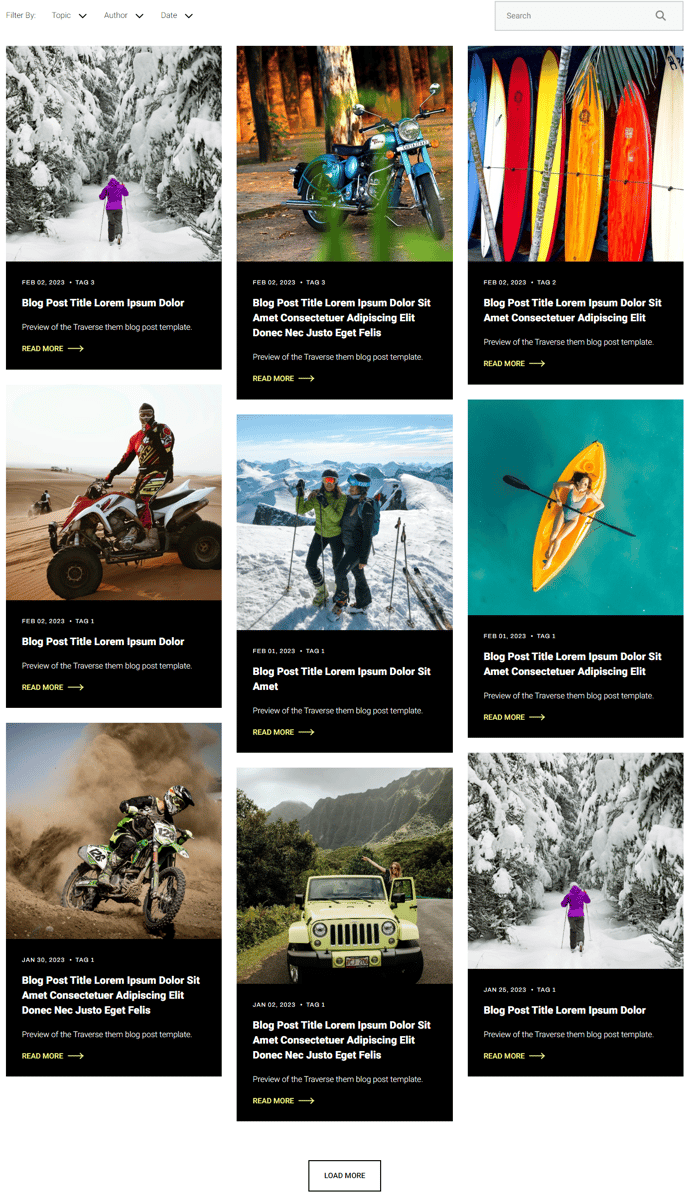
How to Use This Module
The Blog Listing module transforms your blog content into an engaging, Pinterest-style masonry layout that automatically loads more posts as visitors scroll down your page. This module is exclusively designed for HubSpot’s Blog Listing template and serves as the primary content display for your blog hub.
When you drag this module into your Blog Listing template through the HubSpot page editor, you’re creating a dynamic showcase that pulls directly from your published blog posts. The masonry layout intelligently arranges posts of varying heights to create a visually appealing grid without awkward gaps, making it perfect for blogs with mixed content types like short announcements and long-form articles.
Setting up effective filtering is crucial for larger blogs. Use the topic and author filters to help visitors navigate your content more efficiently. The “most popular tags” option automatically surfaces your most-used topics, while manual tag selection gives you complete control over which categories appear in the filter bar.
The infinite scroll functionality eliminates pagination, creating a seamless browsing experience that encourages visitors to explore more content. You can control the initial load quantity and subsequent batch sizes to optimize page performance while maintaining engagement.
Pro tip: Configure the summary settings carefully based on your content strategy. If your blog posts have well-crafted meta descriptions, use those for consistency. For posts with detailed excerpts, the summary option often provides more engaging previews. Test different summary lengths to find the sweet spot that provides enough context without overwhelming the visual layout.
The slide-up card animation works particularly well for product-focused blogs or portfolios, while the standard card style suits traditional business blogs and news sites.