
Image Gallery
A thumbnail gallery of images.
View a live demo of this module.
Content
- Add as many images as needed
Styles
- Change aspect ratio of active image
- Change height and width of thumbnails
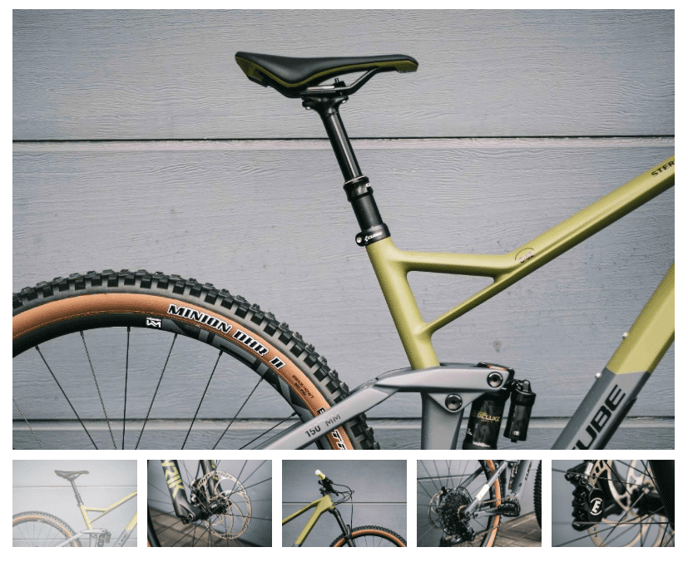
How to Use This Module
The Image Gallery module is perfect for showcasing product collections, portfolio pieces, or any set of related images where visitors need to examine details closely. This interactive module creates an engaging browsing experience by displaying a large featured image alongside clickable thumbnails, making it ideal for product pages, case studies, and portfolio sections.
To add this module to your page, drag it from the module library in the HubSpot page editor onto any flexible column or section. You can upload images directly through the module’s content settings or select from your HubSpot file manager. The module automatically generates thumbnails, so you only need to upload your full-size images once.
When configuring your gallery, consider your page layout and visitor behavior. Portrait aspect ratios work well for product detail pages, while landscape orientations suit project showcases and team galleries. You can adjust the thumbnail size to accommodate more images in the visible area or make them larger for easier navigation on mobile devices.
For optimal performance, upload images that are consistently sized and properly optimized. The Traverse theme automatically handles responsive scaling, but starting with high-quality source images ensures the best visual result across all devices.
This module works particularly well on product pages where customers need to view multiple angles, landing pages highlighting service offerings, and about pages featuring team photos or company milestones. Combine it with the Traverse theme’s other product-focused modules like specifications tables or testimonials to create comprehensive product showcase pages that drive conversions.
The gallery integrates seamlessly with HubSpot’s global content settings, so any brand colors or typography choices you’ve made in your theme settings will automatically apply to maintain visual consistency across your site.