
Related Resources
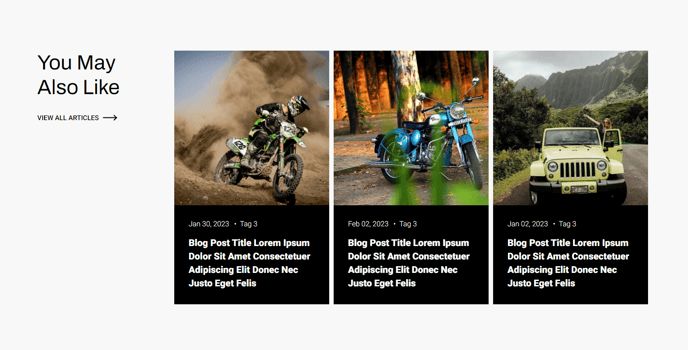
Dynamically generated or manually added resources related to the content of the current page.
Content
- Include heading with eyebrow, heading, sub-heading, text, and/or buttons
- Select what content to show in the resources (image, read time, date, tag, author, summary, cta)
- Select to manually enter content
- If manually entering include image, publish date, read time, author, tag, title, summary, link, button text, button color
- If dynamically pulling posts:
- Set to pull recent posts
- Choose blog(s) to pull from (if not default)
- If not pulling recent posts:
- Select tags that should take priority in the algorithm (this does not make the function explicitly pull those tags)
- Show posts published on after and before certain dates
- Set button text
- Limit the number of posts to show
- Change the date format
- Change where the summary is pulled from (summary, body, meta)
- Set a max word count on the summary
- Change text strings for read time and tag spacer
Styles
- Set Dark Mode of heading and cards separately
- Change text alignment of heading
- Change placement of heading (above resources, to the right of resources, to the left of resources)
- Change image aspect ratio
- Change hover animation of image (zoom-in, zoom-out, grayscale, color)
- Change text alignment of cards
- Change button color of cards
- Style background, border, radius, and box shadow of cards
How to Use This Module
The Related Resources module serves as a powerful content discovery tool that helps visitors find relevant blog posts, case studies, or other resources while browsing your HubSpot pages. This module excels at increasing page engagement and reducing bounce rates by automatically surfacing contextually relevant content or allowing you to manually curate specific resources that support your page’s messaging.
You’ll find this module particularly effective on blog post detail pages, product pages, landing pages, and knowledge base articles where you want to guide visitors to additional valuable content. The dynamic functionality uses HubSpot’s content relationships to intelligently suggest posts based on shared tags and topics, while the manual option gives you complete editorial control for strategic content promotion.
When configuring the dynamic mode, prioritize quality over quantity by limiting posts to 3-6 items to avoid overwhelming visitors. The tag priority feature works as a content weighting system rather than a strict filter, so experiment with different tag combinations to fine-tune your results. For e-commerce implementations, consider using manual mode to showcase specific product resources, testimonials, or educational content that drives conversions.
The module’s flexible styling options allow you to match your brand perfectly within the Traverse theme’s design system. Use the heading placement options strategically – left or right positioning works well for wider layouts, while top placement is ideal for mobile-optimized designs. The hover animations add visual polish, with zoom-in effects working particularly well for product imagery and grayscale transitions creating elegant editorial feels.
Remember to test your Related Resources configuration across different page types in the HubSpot page editor preview mode to ensure consistent performance and visual appeal throughout your site.