
Team Listing
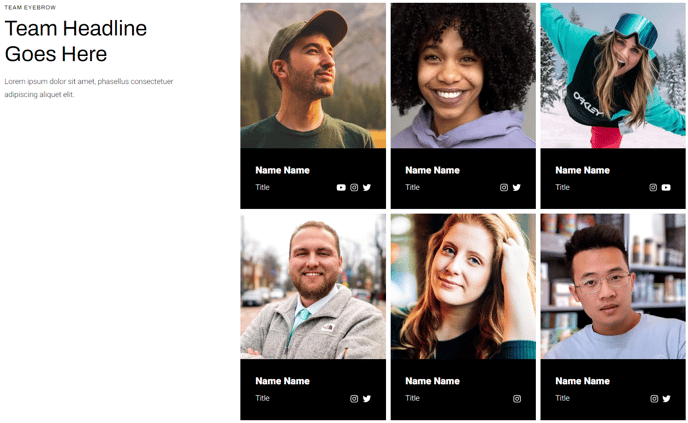
List out team members with their name, title, social links, and profile image.
View a live demo of this module.
Content
- Include a heading with eyebrow, heading, sub-heading, and text
- Add as many team members as needed
- For each team member ,include image, name, title, and socials
- Twitter, Pinterest, Instagram, YouTube, Blog, and email are available out-of-the-box, but a custom social can be added by choosing “other” and selecting a FontAwesome icon
- Include an aria label on socials for screen reader accessibility
- Include a call to action button beneath the listing
- Set how many members to list per row
- Change the spacing between the rows and columns
- Change the heading placement (left of listing, right of listing, above listing)
- Change the placement of socials (above text, right of text, below text, or left of text)
Styles
- Set Dark Mode on heading and team member text separately
- Set a max width on the heading
- Change text alignment of heading and team member text separately
- Add border radius on team member boxes
- Change aspect-ratio of team member images
- Change background color of team member boxes
- Change height and color of social icons
- Enclose social icons in a colored box (change height, width, border, radius, and color of box)
Usage Guide
The Team Listing module is essential for About Us, Our Team, and company overview pages where you need to showcase your organization’s people in a professional, visually appealing format. This drag-and-drop module works particularly well on landing pages, service pages where you want to highlight expertise, and dedicated team directory pages.
When adding this module through the HubSpot page editor, you’ll find it integrates seamlessly with Traverse’s responsive grid system. The module automatically adapts to different screen sizes, ensuring your team profiles look polished on desktop, tablet, and mobile devices. Start by configuring your heading section first – this provides context for visitors before they browse individual team members.
For optimal visual hierarchy, consider placing team members in order of seniority or relevance to your page’s purpose. The FontAwesome integration for custom social icons means you can include platforms beyond the standard options – simply select “other” and choose from hundreds of available icons for platforms like LinkedIn, TikTok, or custom company portals.
Pro tip: Use consistent image dimensions and professional headshots for the most cohesive appearance. The aspect-ratio controls help maintain uniformity even when source images vary in size. The social icon placement options (above, below, left, or right of text) let you match your brand’s design preferences while maintaining accessibility through required aria labels.
This module pairs exceptionally well with Traverse’s Hero sections and works effectively as a standalone page element or combined with testimonial modules to create comprehensive team showcase pages. The Dark Mode compatibility ensures your team listings maintain visual appeal across all of Traverse’s style variations.