
Flex
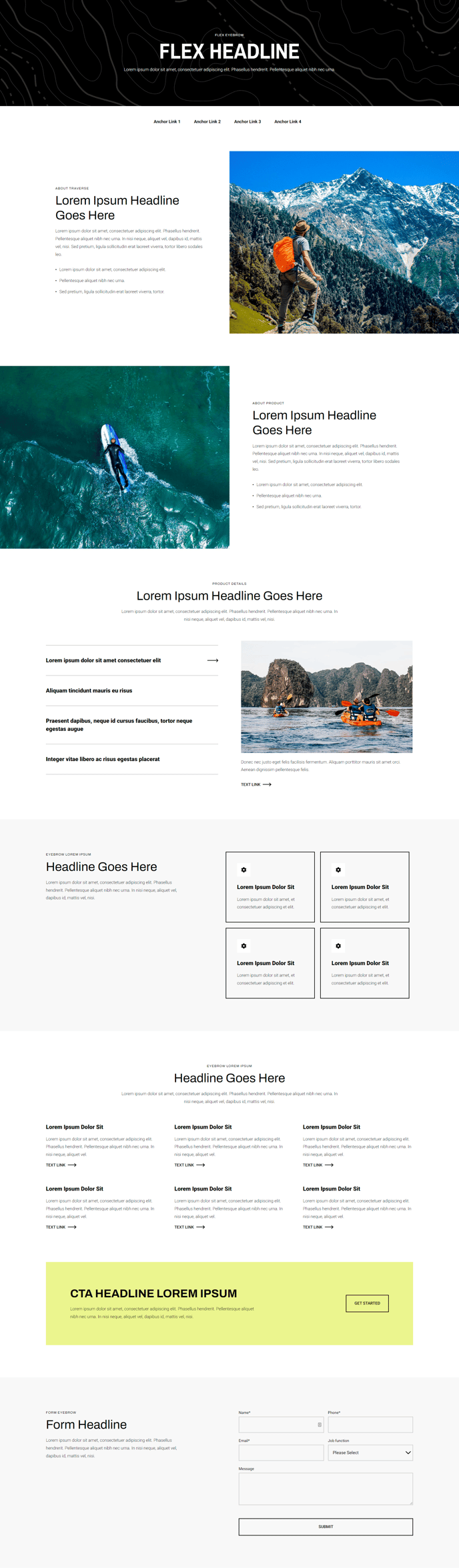
Build any type of inner page you need using a flexible template.
Default Sections
- Hero - Simple
- Two Tone Section - Image Right
- Tabbed Content - Vertical
- Featured Items - Boxed - Left Heading
- Featured Items - Six
Default Modules
Built-In Modules
Usage Guide
The Flex template serves as Traverse’s most versatile page template, designed specifically for creating custom inner pages that don’t fit the standard homepage or landing page formats. Unlike fixed-layout templates, the Flex template gives you complete creative control through HubSpot’s drag-and-drop page editor, making it ideal for service pages, about pages, resource hubs, or any unique content structure your site requires.
When setting up a new Flex page, you’ll start with the pre-configured sections listed above, but the real power lies in your ability to rearrange, remove, or add additional sections from the Traverse library. The Hero - Simple section provides an excellent starting point for page introductions, while the Two Tone Section and Tabbed Content components help break up long-form content into digestible segments.
Best practices for Flex pages include utilizing the Page Navigation module to create smooth scrolling between sections on longer pages, and strategically placing the Call to Action Box module to guide visitors toward your desired conversion points. The Full Width Two Columns module works particularly well for comparison content or feature explanations.
The built-in SEO modules ensure your custom pages maintain strong search engine visibility. Remember to configure the Indexing and Social SEO settings in the page editor’s Settings tab, and take advantage of the Schema module to help search engines understand your content structure.
Pro tip: Before publishing, preview your Flex page on different device sizes using HubSpot’s responsive preview feature, as the flexible nature of this template means section arrangements may need mobile-specific adjustments through the theme’s responsive settings.