
Blog Featured Posts
Displays a few blog posts. Choose by selecting most recent, most popular, particular tags or manually picking your posts.
Note: This module is only able to be used on Blog Listing templates.
Content
- Choose to show recent posts, popular posts, recent posts that have a particular tag, or manually selected posts
- This module pulls from the portal’s default blog, but you can choose to pull from any blog in your portal
- Set a limit on number of posts to show
- Show/hide summary, tags, author, and publish date
Styles
- Choose aspect ratio, hover animation, and width of images
- Set module to overlap a section above or below it (only visible if the section the module is in and the section it’s overlapping have differing backgrounds)
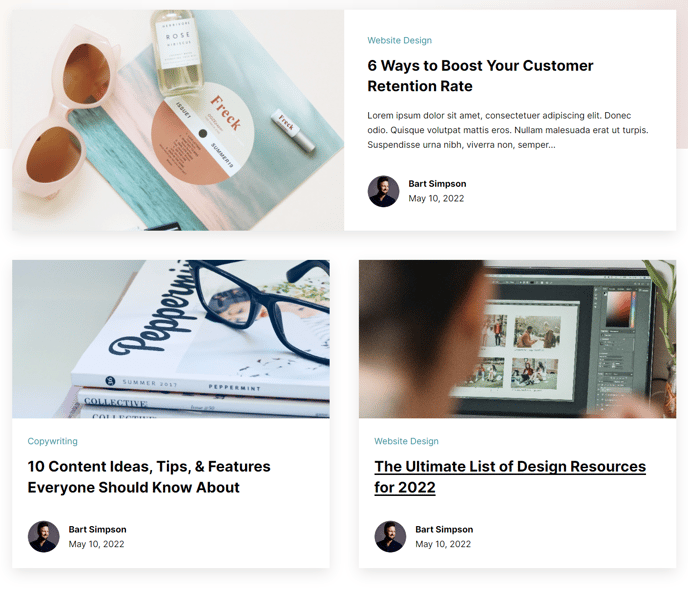
How to Use This Module
The Blog Featured Posts module serves as a powerful content curation tool for your blog listing pages, allowing you to spotlight important articles that drive engagement and showcase your expertise. Unlike standard blog listing displays that show posts in chronological order, this module gives you editorial control over which posts appear prominently on your blog homepage or category pages.
When adding this module through the HubSpot page editor’s drag-and-drop interface, you’ll find it particularly effective at the top of blog listing templates where it can function as a hero section for your most valuable content. The module works seamlessly with the Vertical theme’s bold typography and modern spacing to create an eye-catching featured posts gallery.
Strategic implementation tips for content editors include using the “popular posts” option to automatically highlight your highest-performing content, or leveraging the tag-based selection to create dynamic sections that update automatically as you publish new posts with specific tags. The manual selection option works well for promotional campaigns or when you want to feature a curated mix of evergreen content.
The overlap styling feature integrates beautifully with Vertical’s section backgrounds – try overlapping onto a colored or image background section below to create depth and visual interest. When configuring image settings, consider that the modern aspect ratios work best with high-quality featured images that match your brand aesthetic.
Since this module only functions on blog listing templates, it’s ideal for creating magazine-style blog homepages or topic-specific landing pages where featured content needs to stand out from the standard post feed that appears elsewhere on the page.