
Hero - 2 Columns
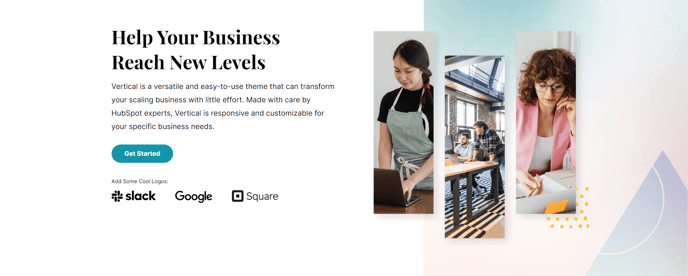
Two column hero with options to add text and logos to one side and an image, form, or video on the other side.
Note: The section this module is added to should have its Content Alignment set to Full width.
View a live demo of this module.
Content
- Include row of logos and turn into a slide by setting Logos Per Slide to lower number than number of logos uploaded
- On media side add image, form, or video
- Change vertical alignment
- Change placement of media on both desktop (left or right) and mobile (top or bottom)
Styles
- Set Dark Mode
- Change background on desktop and mobile (color, gradient, or background)
- Edit module padding
- Add load-in animation to media
- Change text alignment
- Customize list styling
- Change max logo height on desktop and mobile
- Customize form styling
- Change play button color and overlay color on video
Usage Guide
The Hero - 2 Columns module is designed to create impactful above-the-fold sections that immediately capture visitor attention on your SaaS or technology website. This versatile module works exceptionally well on homepage templates, product landing pages, and campaign-specific pages where you need to balance compelling messaging with visual elements or lead capture forms.
When adding this module through the HubSpot page editor, you’ll want to position it near the top of your page layout for maximum impact. The two-column structure allows you to create powerful combinations like pairing your value proposition with a product demo video, or showcasing customer logos alongside a lead generation form. This flexibility makes it particularly effective for product announcements, feature launches, and conversion-focused landing pages.
The logo carousel functionality transforms static trust indicators into dynamic social proof. Rather than displaying all customer logos at once, you can create an engaging slideshow by uploading multiple logos and setting the “Logos Per Slide” to a lower number. This approach works especially well when you have numerous high-profile clients to showcase but limited screen real estate.
Pay special attention to the media placement options, as they significantly impact user experience across devices. On desktop, consider placing forms on the right side to align with natural reading patterns, while videos often perform better on the left to immediately grab attention. For mobile optimization, test whether placing media at the top or bottom of the column creates better engagement with your specific audience.
The Dark Mode styling option integrates seamlessly with the Vertical theme’s modern aesthetic, making it ideal for technology companies that want to convey innovation and sophistication. This setting automatically adjusts text colors and contrast ratios to maintain readability while creating visual appeal.