
Hero - Blog Post
A hero for the Blog Post template to display blog post information.
Note: This module is only able to be used on Blog Post templates.
Content
- Show/hide back link, tag, read time, date, author, and/or featured image
- Show all tags or just one
- Edit strings used within module (back link and author text)
Styles
- Set Dark Mode
- Change background for both desktop and mobile (color, gradient, image)
- Edit module padding
- Change load-in animation for image
- Change text alignment
- Change the overlap height of the image (how much of the image to hang over the hero)
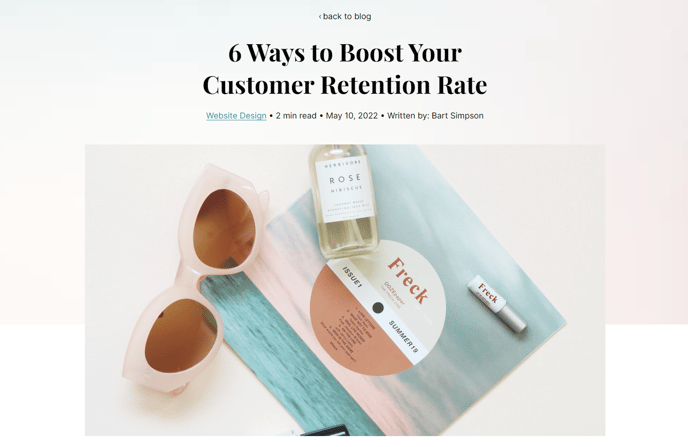
Usage Guide
The Hero - Blog Post module serves as the primary header section for individual blog posts in your Vertical theme, automatically pulling in metadata and featured images to create an engaging introduction to your content. Unlike standard hero modules, this specialized component is specifically engineered to work with HubSpot’s blog system, dynamically displaying post titles, publication dates, author information, and estimated reading times without manual input.
When you add this module to your blog post template through the page editor, it automatically inherits content from your blog post settings, including the featured image you’ve uploaded and any tags you’ve assigned. This automation ensures consistency across all your blog posts while saving time during content creation. The module works particularly well for technology and SaaS companies using the Vertical theme, as it maintains the bold, modern aesthetic while presenting blog content in a professional format.
Best practices for this module include:
You can leverage the customizable background options to create visual variety across different blog categories—consider using subtle gradients for technical posts or solid colors that align with your brand palette. The overlap height setting for featured images is particularly powerful for creating depth and visual interest, allowing your blog imagery to extend into the content area below.
The tag display options give you flexibility in how you categorize content for readers. Showing all tags works well for comprehensive topic coverage, while displaying just one tag helps maintain a cleaner aesthetic for focused, single-topic posts. Remember that the dark mode toggle should align with your overall site design and any theme-wide dark mode settings you’ve configured in your HubSpot design manager.