
Pricing Boxes
Informational boxes for product pricing.
View a live demo of this module.
Content
- Changes number of boxes to show per row
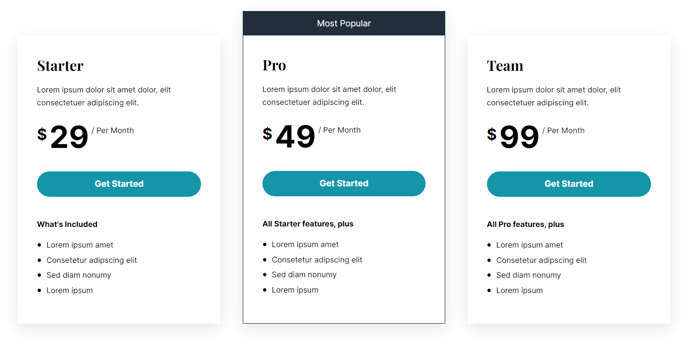
- Set a box as featured to call it out from the rest
Styles
- Set Dark Mode
- Change text alignment
- Set the module to overlap a section above or below it (only visible if module’s section and the section it’s overlapping have differing backgrounds)
- Edit background, border, and box-shadow of pricing boxes
- Edit border and featured heading of featured boxes
How to Use the Pricing Boxes Module
The Pricing Boxes module is specifically designed for SaaS and technology companies to showcase their product pricing tiers in a visually compelling way. This drag-and-drop module works particularly well on dedicated pricing pages, product landing pages, and service overview pages where you need to present multiple pricing options side-by-side for easy comparison.
When adding this module through the HubSpot page editor, you’ll find it most effective when placed in sections with ample white space to let your pricing tiers breathe visually. The module’s responsive design automatically adjusts the number of boxes per row based on screen size, but you can customize this behavior in the content settings to match your specific layout needs.
The featured box functionality is particularly powerful for highlighting your most popular or recommended pricing tier. This creates a visual hierarchy that guides visitors toward your preferred conversion point. The featured styling includes distinct border and heading treatments that make it stand out without overwhelming the other options.
For optimal conversion results, consider using the dark mode styling when placing this module on light backgrounds, as the contrast helps draw attention to your pricing information. The overlap feature works exceptionally well when you want to create a layered design effect—just ensure the section above or below has a contrasting background color for the overlap to be visible.
When configuring multiple pricing boxes, maintain consistency in your content length across tiers. Uneven content can create awkward spacing, but the module’s flexible styling options allow you to adjust borders and shadows to create visual balance even when content varies.