Edit Built-in Modules
Learn what a built-in module is and how to edit it in your theme.
Some of our themes have “built-in” modules such as Back to Top, Transparent Header, Indexing and Social SEO, and Schema modules. These modules are not drag-and-drop but instead are permanently added to the template. Due to this, they cannot be found in the Add tab of the page editor sidebar or clicked on within the page editor view.
To find and edit these modules, you will need to navigate to the Contents tab of the page editor sidebar, where you will find them listed under either Hidden Modules or Static Modules. From there, you can choose the module you want to edit.
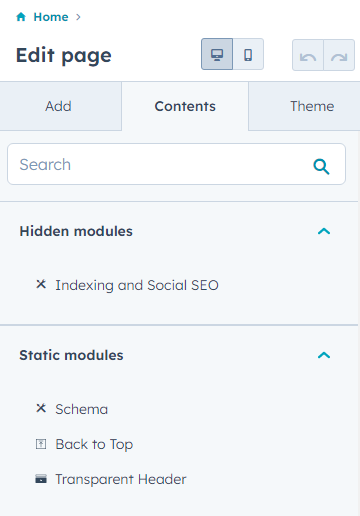
Understanding Built-in Module Functionality
Built-in modules serve as foundational components that automatically enhance your HubSpot pages without requiring manual setup each time you create content. Unlike standard drag-and-drop modules that you add individually to each page, these modules work behind the scenes to provide consistent functionality across your entire website.
When working with built-in modules, you’ll notice they don’t appear in your typical content editing workflow. This is intentional – these modules are designed to provide site-wide functionality without cluttering your page editor interface. The Back to Top module, for example, automatically adds smooth scrolling navigation to lengthy pages, while the Schema module ensures proper structured data markup for search engines without any technical knowledge required on your part.
Hidden Modules in the Contents tab typically contain functionality that runs automatically, such as SEO optimization features or tracking code. You can modify their settings to match your specific requirements, but they’ll continue working even if you don’t interact with them. Static Modules often control visual elements like transparent headers that respond to page scroll behavior or content positioning.
When editing these modules, focus on configuration rather than placement – you’re adjusting how they behave rather than where they appear. For instance, you might customize the trigger point for a transparent header to become opaque, or modify the appearance timing for a back-to-top button. These settings will apply globally across pages that use the same template, ensuring consistent user experience throughout your website.
Remember that changes to built-in modules may affect multiple pages simultaneously, so always preview your modifications across different page types before publishing to ensure optimal performance across your entire site.