Why is the Header of the Theme Not Styled/Functioning Like the Demo?
All of our themes (except for Rubric) use a Site Header module for the header. If you are instead seeing a Menu module in the Website Header global then you have run into a strange bug of HubSpot’s. Sometimes after downloading a theme the HubSpot system will replace the contents in the global header with its own default modules.
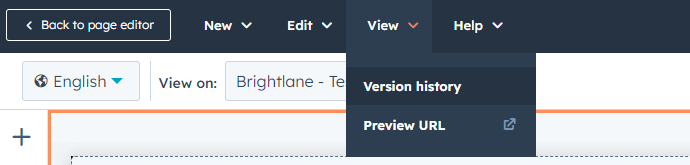
In most cases you should be able to resolve this by opening the Website Header global and going to View > Version History.
Tip: For more information on accessing the Website Header global refer to the knowledgebase article How To Edit Your Header and Footer.
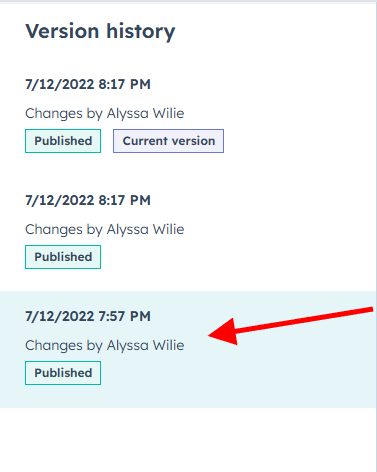
Select the very last version in the listing (names, dates, and times will be different than what is in this screenshot).
And then click the orange Restore version button in the top right corner.
Understanding HubSpot’s Global Module System
When you install a new theme in HubSpot, the platform’s global module system is designed to maintain consistency across your website’s header and footer elements. However, this automated process occasionally conflicts with custom theme implementations, particularly when HubSpot’s default modules override the carefully crafted Site Header modules that come with your Lynton theme.
The Site Header module included with most Lynton themes contains specialized styling, navigation structures, and functionality that align with your theme’s overall design system. When HubSpot replaces this with its standard Menu module, you lose access to theme-specific features like custom logo positioning, advanced dropdown menus, mobile responsiveness optimizations, and integrated contact information displays.
Prevention and Best Practices
To minimize the likelihood of this issue occurring in the future, avoid making changes to your Website Header global module immediately after theme installation. Instead, allow 24-48 hours for HubSpot’s system to fully process the theme files before customizing your header content.
When working with the restored Site Header module, you can access theme-specific customization options through the module editor in your page editor. These typically include logo upload fields, navigation menu selections, and styling toggles that aren’t available in HubSpot’s default modules.
Troubleshooting Additional Issues
If restoring the version history doesn’t resolve your header styling issues, check your theme settings in the design manager to ensure all CSS files are properly linked. Additionally, verify that your navigation menus are properly configured in your HubSpot settings, as the Site Header module relies on these menu structures to display correctly.
Remember to publish your changes after restoration to ensure the updated header appears across all pages of your website.