How Do I Upload My Purchased Theme Zip File to a HubSpot Portal?
If you purchased a Theme License from our Lynton marketplace, you will receive a zip file with the theme that can be uploaded to any portal.
An experienced developer can unzip the zip file to their local machine and use the HubSpot CLI to upload the files if they wish to edit the theme locally. Alternatively, the following directions can be followed to upload the zip file through the HubSpot portal:
1. Go to the portal’s Settings.

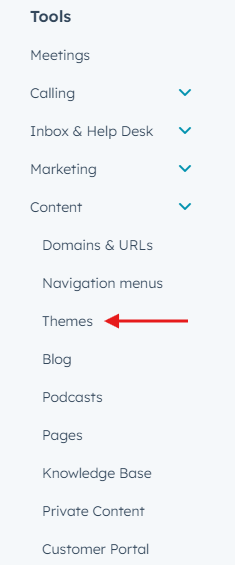
2. In Settings, navigate to Tools > Content and click Themes.
3. Once in the Theme settings, click the Upload Theme button and select the zip to upload.

Once the upload is complete, the theme will appear in the root of the Design Manager and be available for use.
Post-Upload Setup and Best Practices
After successfully uploading your Lynton theme zip file, you’ll need to configure it properly to ensure optimal performance across your HubSpot portal. The uploaded theme becomes immediately available in your Design Manager’s file tree, where you can access all template files, modules, and theme-specific assets.
Initial Theme Configuration
Navigate to your newly uploaded theme folder in Design Manager to explore its structure. Most Lynton themes include pre-configured global content settings that you can customize under Settings > Website > Blog/Website themes. These settings typically control site-wide elements like headers, footers, and color schemes that will apply across all pages using this theme.
Page Creation and Template Selection
When creating new pages or blog posts, you’ll find your uploaded theme templates available in the template selection dropdown. Each template is designed for specific content types, so choose landing page templates for campaigns, blog templates for articles, and system pages for standard website sections. The drag-and-drop page editor will respect the theme’s styling while allowing you to customize content within defined areas.
Module Functionality and Customization
Your uploaded theme includes custom modules that appear in the page editor’s module library. These modules are specifically designed to work together cohesively, maintaining consistent styling and functionality. You can customize module settings through the inspector panel, adjusting colors, spacing, and content to match your brand while preserving the theme’s professional design integrity.
Theme Updates and Maintenance
Keep your original zip file for reference, as future theme updates will require re-uploading. Before making significant customizations, consider cloning important templates to preserve your original theme structure for easy restoration if needed.