Download Updates to Your Theme
Find out what to do when we update a theme.
Note: We test all updates against our demo sites to ensure updates made will not negatively impact any live sites so that you can update your theme with peace of mind. Warning: If you have cloned any files from the original theme into a child theme those files will not be able to receive updates.
When Lynton updates a marketplace theme you’ve downloaded, you should receive an email from HubSpot notifying you an update is available (unless you’ve turned off notifications). This email will contain a link to where you can download the update.
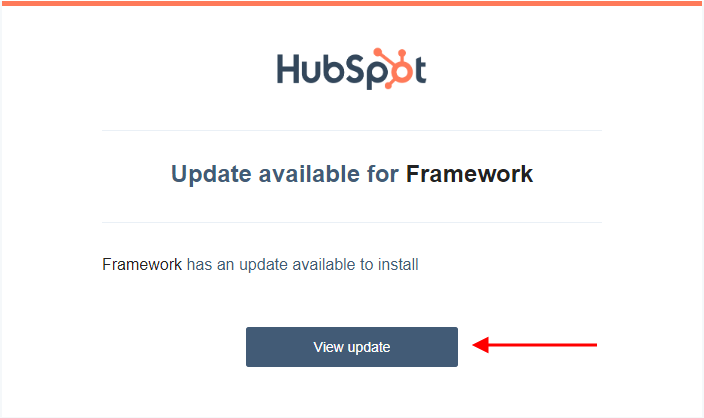
Navigate to the Install Location Manually
Click the Gear icon on the right of the portal header menu to navigate to the Settings dashboard.

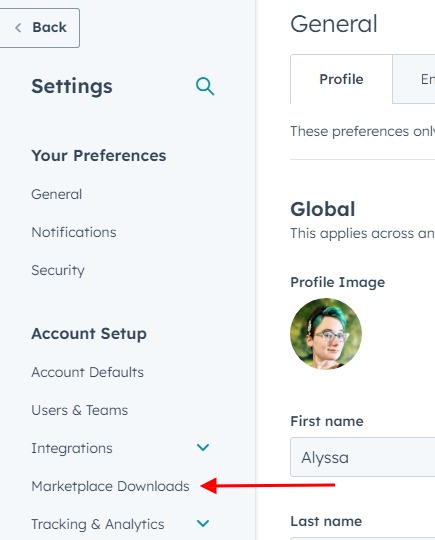
In the left-hand sidebar of the Settings dashboard, click **Marketplace Downloads.
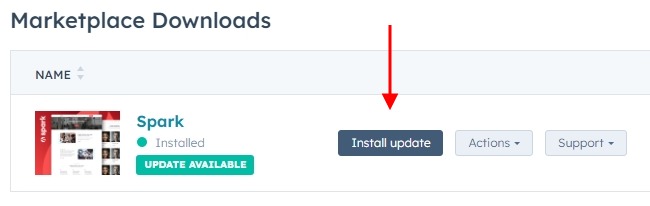
 **In the downloads listing, locate the theme you want to update, and if an update is available, click the Install update button next to the list item.
Understanding Theme Updates and Best Practices
When you update your HubSpot theme, the new version overwrites existing template files while preserving your content and theme settings. This means your page content, custom modules you’ve added through the page editor, and any theme configuration changes you’ve made will remain intact after the update process completes.
Timing Your Updates Strategically
Consider scheduling theme updates during low-traffic periods to minimize any potential disruption to your site visitors. While Lynton’s testing ensures updates are safe, you may want to preview your key pages after updating to confirm everything displays as expected. Pay special attention to your homepage, landing pages, and any templates you’ve heavily customized through the theme settings panel.
Managing Child Theme Considerations
If you’re using a child theme setup, remember that any files you’ve cloned and modified will need manual attention. Before updating, document which template files you’ve customized so you can reapply those changes if needed. The drag-and-drop page editor customizations and global content settings will transfer seamlessly, but custom CSS or template modifications in cloned files require separate handling.
Post-Update Verification
After installing an update, check your theme’s design manager to ensure all templates appear correctly. Test your contact forms, navigation menus, and any custom modules to verify functionality. If your theme includes new features or modules in the update, you’ll find them available in the page editor’s module selection panel, ready to drag onto your pages for enhanced functionality.