How Can I Demo One of Your Paid Themes?
To demo one of our paid themes, you can request access to our demo portal.
Request 1 week of access to the demo portal here.
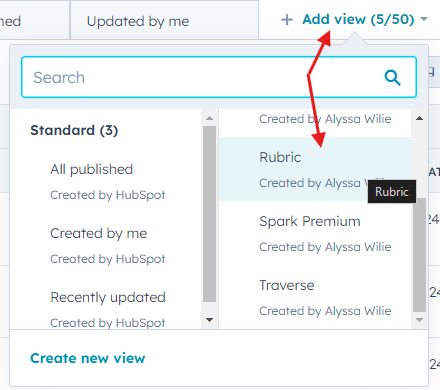
Our portal includes all 5 of our paid themes. To view a theme’s page templates, go to Content > Website Pages and use the Add View dropdown to select the theme you wish to view.
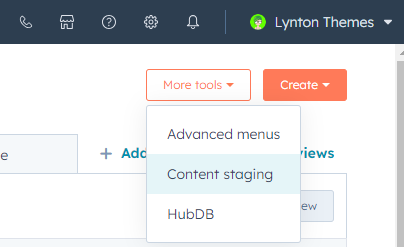
To test and play around with templates, please select the More tools button and use Content staging to create staged pages.
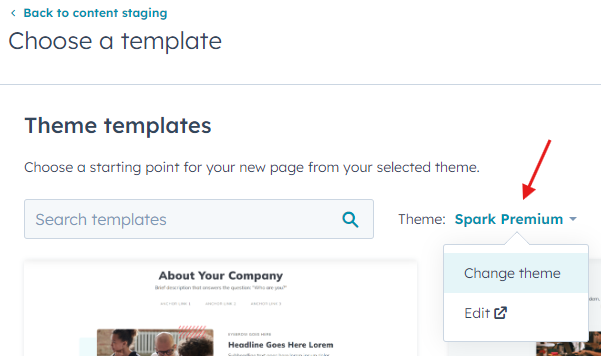
When creating a staged page, use the Theme dropdown to change themes.
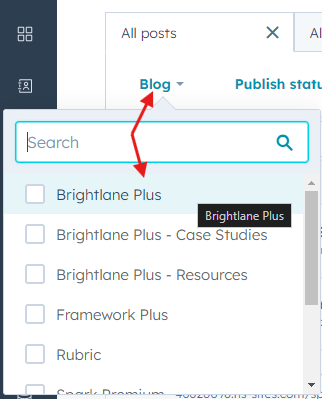
To view a theme’s blog templates, go to Content > Blog and use the Blog dropdown to select the theme you want to view.
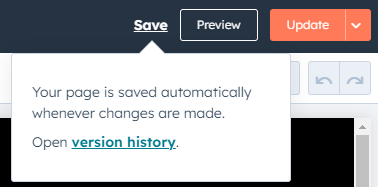
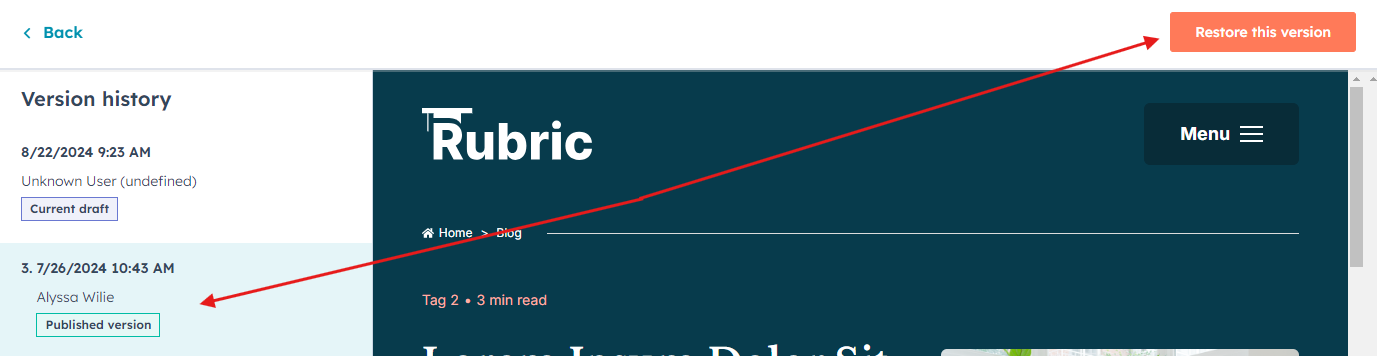
Please revert any changes you make by hovering over Save, opening the Version history, and restoring the Published version.
Please do not clone, archive, or move any of our pages or posts.
Getting the Most Out of Your Demo Experience
When you access the demo portal, you’ll be working with a fully functional HubSpot CMS environment that mirrors what you’ll experience after purchasing one of our themes. This hands-on approach lets you test how each theme’s page editor works with your specific content needs and design preferences.
During your demo week, focus on testing the drag-and-drop functionality within each theme’s page templates. Open the page editor and experiment with moving modules around to see how flexible each theme’s layout system is. Pay attention to how modules snap into place and whether the responsive behavior meets your mobile design requirements. Each of our five themes has distinct module arrangements and styling options that become apparent only through direct interaction.
Take advantage of the theme settings panel, which you can access from the page editor’s design tab. This is where you’ll configure global elements like colors, fonts, and header styles that will apply across your entire site. Testing these settings in the demo environment helps you understand how much customization each theme offers without requiring custom CSS.
When evaluating blog templates, create a few test posts with different content types—try posts with featured images, video embeds, and varying text lengths. This gives you insight into how each theme handles real-world content scenarios and whether the blog layout aligns with your content marketing strategy.
Pro tip: Use the preview functionality extensively to see how pages look on different devices. The demo portal’s responsive preview tools show exactly how your visitors will experience each theme across desktop, tablet, and mobile viewports, helping you make an informed decision before purchase.