Why Does Switching The Template of a Page To My New Theme Template Not Look Right?
HubSpot has an odd behavior where switching from one drag-and-drop template to another drag-and-drop template causes a sort of combination of the two instead of completely replacing the content with the selected template.
For Website and Landing pages you can use Content Staging to stage a blank page of the page you want to update to start fresh with the new template.
For Blog Listings the best option is to ensure you have the new theme set as your default theme and create an entirely new blog.
OR something that may also work (but doesn’t always):
1. Add ?developerMode=true to the page editor URL and hit Enter on your keyboard to go to the URL with the added parameter.
2. This will add a Reset Content button to each dnd_area in the Page Contents sidebar. Click that button to reset the contents to the template’s original content.
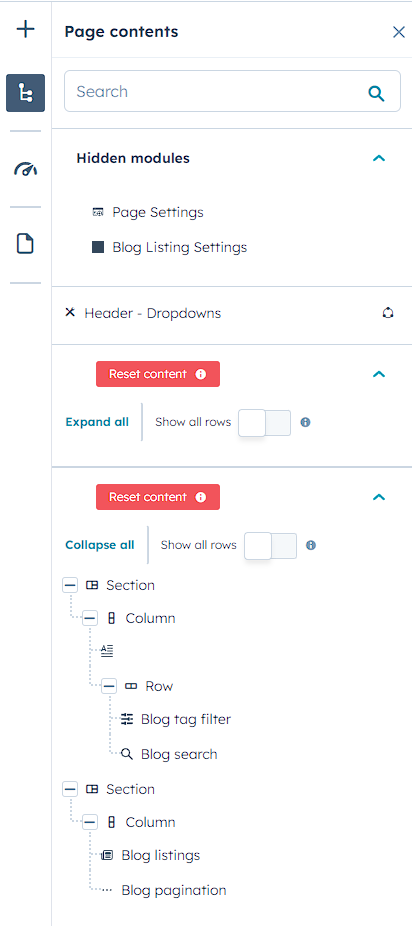
Understanding HubSpot’s Template Switching Behavior
When you switch templates in HubSpot’s page editor, the platform attempts to preserve your existing content by mapping it to similar modules in the new template. This “smart” behavior can create unexpected results because HubSpot doesn’t completely replace your page content—instead, it tries to merge your current modules with the new template’s structure.
This issue is particularly common when switching between different theme architectures. For example, if your original template uses a hero section with specific field configurations and your new theme’s hero section has different fields or styling options, HubSpot may retain some of the old formatting while applying the new template’s visual design. The result often appears as a hybrid that doesn’t match either template’s intended appearance.
Why This Happens More Often With Drag-and-Drop Templates
Drag-and-drop templates store module data directly within the page content, making it “sticky” when you switch templates. Unlike coded templates that pull styling from theme files, drag-and-drop modules retain their individual settings and can conflict with your new template’s default styling.
Additional Troubleshooting Tips
Before using the developer mode reset option, check your Design Tools settings to ensure your new theme is set as the default. Sometimes template switching issues stem from the page still referencing the old theme’s CSS or module configurations.
If you’re working with blog listing pages specifically, remember that HubSpot treats blog templates differently than website pages. The blog inherits template settings at the blog level rather than individual post level, which is why creating a new blog with your preferred theme often yields cleaner results than attempting to switch existing blog templates.